Aned Book Help
Help home Menu Step-by-step Video guides What's new Contact us Download Price YouTube
Start
  • Dashboard
  • Calendar & Reminders
Masters
  • Customers & Suppliers
  • Ledgers
  • M.R.s
  • Items
  • Barcode Labels
  • HSN / SAC Codes
  • Batch ledger
  • Physical Stock
  • Stock Journals
  • Stock Transfers
  • Stock by Godown
  • Shifts
  • Duplicate Check
  • Opening Balances
Sales
  • Sales Invoices
  • Sale Challans
  • E-way Bills
  • Quotations
  • Sale Orders
  • Credit Notes
Purchase
  • Purchase Bills
  • Purchase Challans
  • Purchase Orders
  • Debit Notes
Vouchers
  • Receipt Vouchers
  • Payment Vouchers
  • Contra Vouchers
  • Journal Vouchers
  • Sale Vouchers
  • Purchase Vouchers
  • GST Outward
  • GST Inward
  • All Vouchers
  • Day Book Entry — cash and bank, many days
  • Bank Statement Entry
  • Credit Note (Amount)
  • Debit Note (Amount)
  • Outstanding Ageing
  • Interest on Overdue
  • Cheques (PDC)
  • Bank Reconciliation
Restaurant
  • Tables
Transport
  • Consignment Notes
  • Freight Register
Reports
  • GST Reports
  • Sale / Purchase Analysis
  • Stock Analysis
  • Reorder Suggestion
  • Commission
  • Pharmacy Reports
Books
  • Accounts
  • Profitability
  • Imports & Exports
Settings
  • Company profile
  • Trade profile
  • Metal rates
  • Fuel rates
  • Cost centres
  • Nozzles
  • Bill of materials
  • Barcode labels
  • Financial year
  • All companies
  • Users
  • HSN / SAC codes
  • GSTIN verification
  • Backup / Export
  • Printer setup
  • Extra counters
  • Registration
  • About
Aned Book help › Menu › Purchase › Purchase Bills

How do I enter a supplier’s bill?

How to

Open Purchase, Purchase Bills, and press + Add purchase. Choose the supplier, type the bill number and date from his paper, add the items with quantity and rate, and press Save (F10). The stock goes up and the amount goes on the supplier’s account.

  1. Choose the supplier. A new supplier is added with the + beside the box.
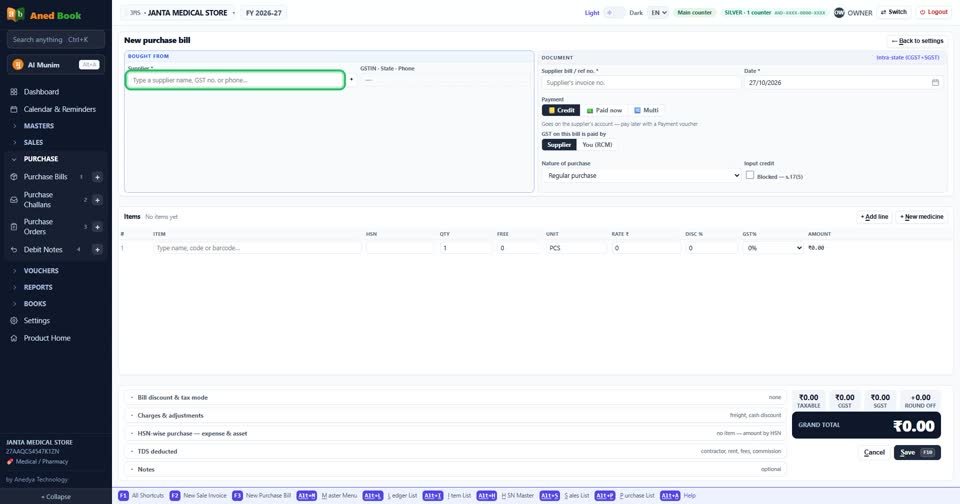
    Choose the supplier. A new supplier is added with the + beside the box.
  2. Type the bill number exactly as it is printed on the supplier’s bill.
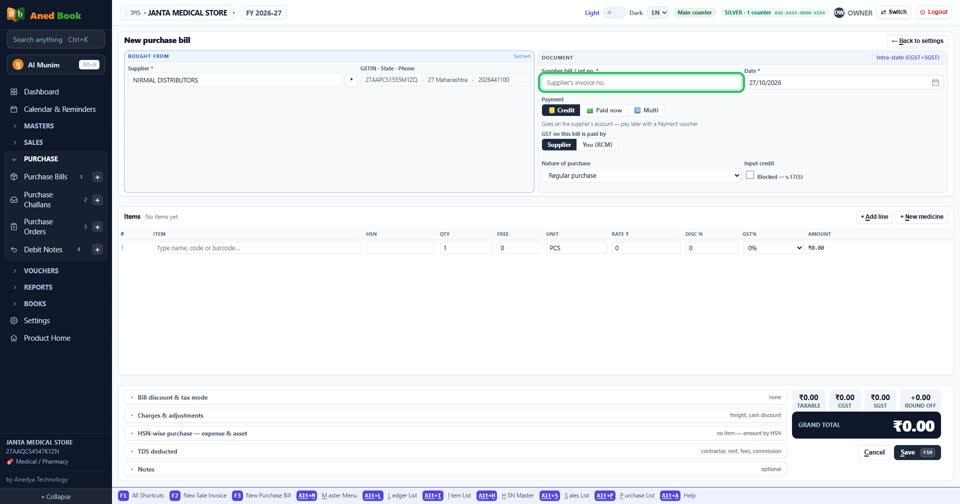
    Type the bill number exactly as it is printed on the supplier’s bill.
  3. Add the items, then press Save — or F10.
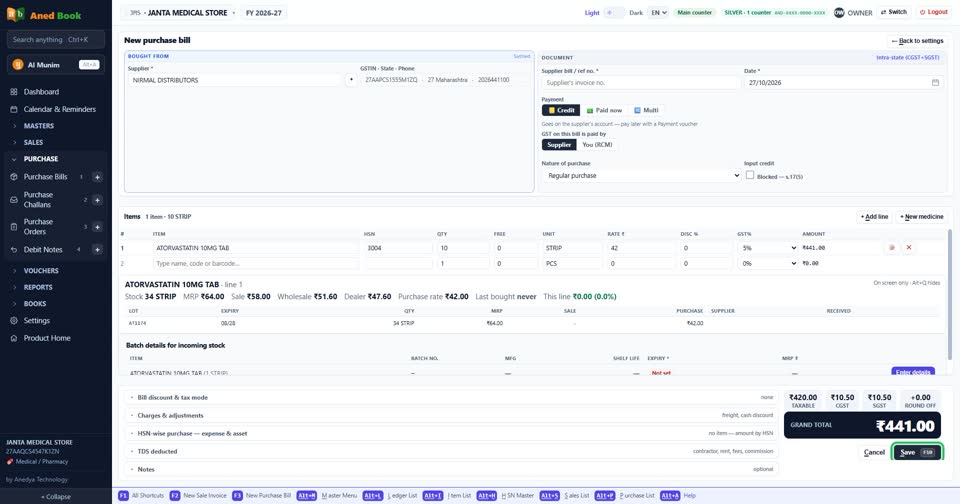
    Add the items, then press Save — or F10.

More questions on Purchase Bills

  • Where do I type the batch number and expiry?
  • I paid the supplier when the goods came. How do I enter that?
  • The supplier gave free goods on a scheme. How do I enter them?
  • How do I add freight or transport charges on the bill?
  • Can the software read the supplier’s bill for me?
  • It says “Select a supplier”
  • It says “You already entered bill … from this supplier”
  • It says “Batch details missing”
  • It says “you cannot receive expired stock”
  • It says “MRP is below your purchase rate”
  • Why doesn’t the purchase bill number come by itself?
  • Why can I save a medicine without a batch?
Still stuck? Press Alt + A inside the software and ask in your own words — it works with no internet. Or talk to us on WhatsApp, phone or e-mail.
Aned Book — GST billing and inventory software for Indian shops. ANEDYA TECHNOLOGY LLP · anedya.net · Contact us