Payment Vouchers
In the software: Vouchers › Payment Vouchers
Basic, Silver, Gold onlyMoney paid to suppliers or for expenses.
Questions about Payment Vouchers
Step by step
Videos about Payment Vouchers
 ▶
▶
Every step, with a close-up of the screen (12)
Step 1 supplier को उसका पैसा दिया — cash, UPI, या cheque से। उसे लिखने के लिए payment voucher।
▶ Watch this step · 0:00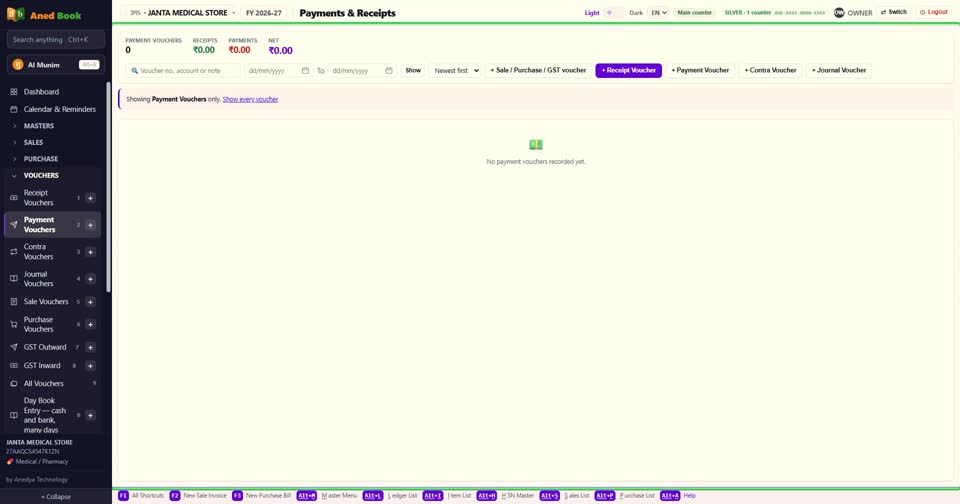
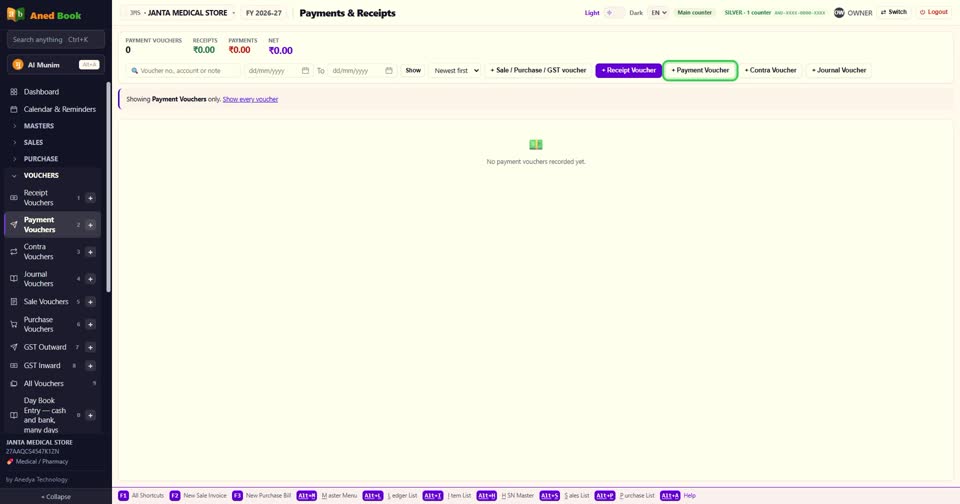
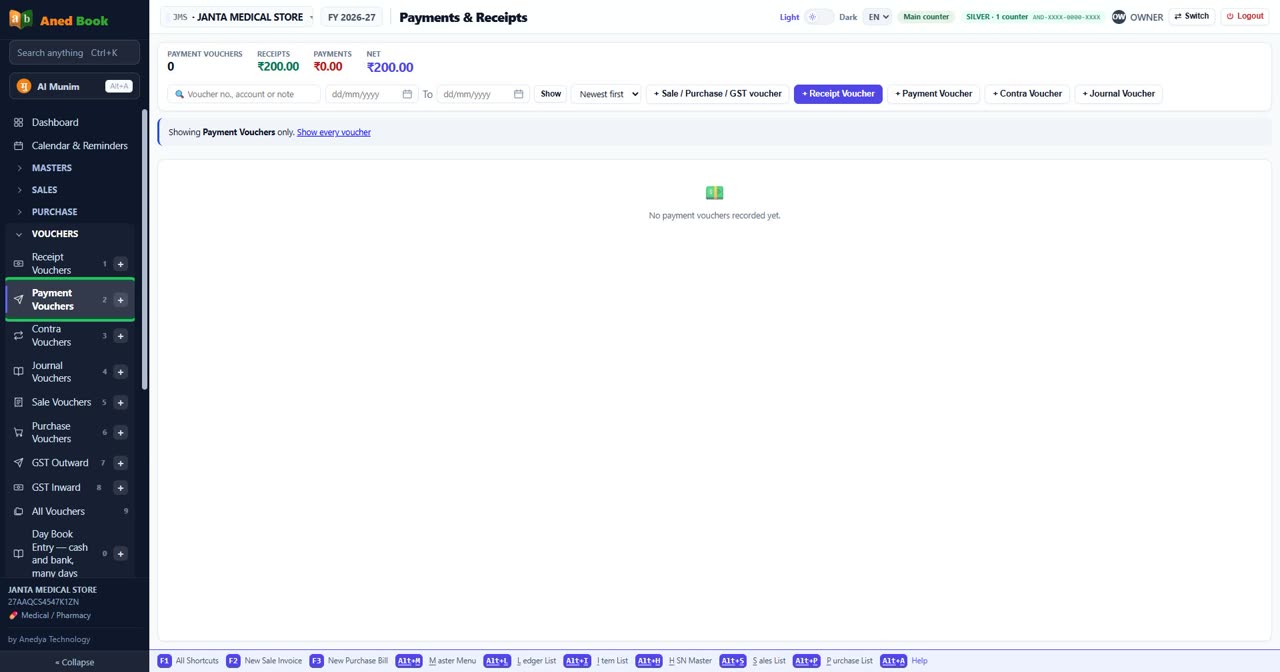
Step 2 menu में Vouchers खोलिए, और Payment Vouchers। ऊपर plus Payment Voucher दबाइए — या कहीं से भी F6।
▶ Watch this step · 0:09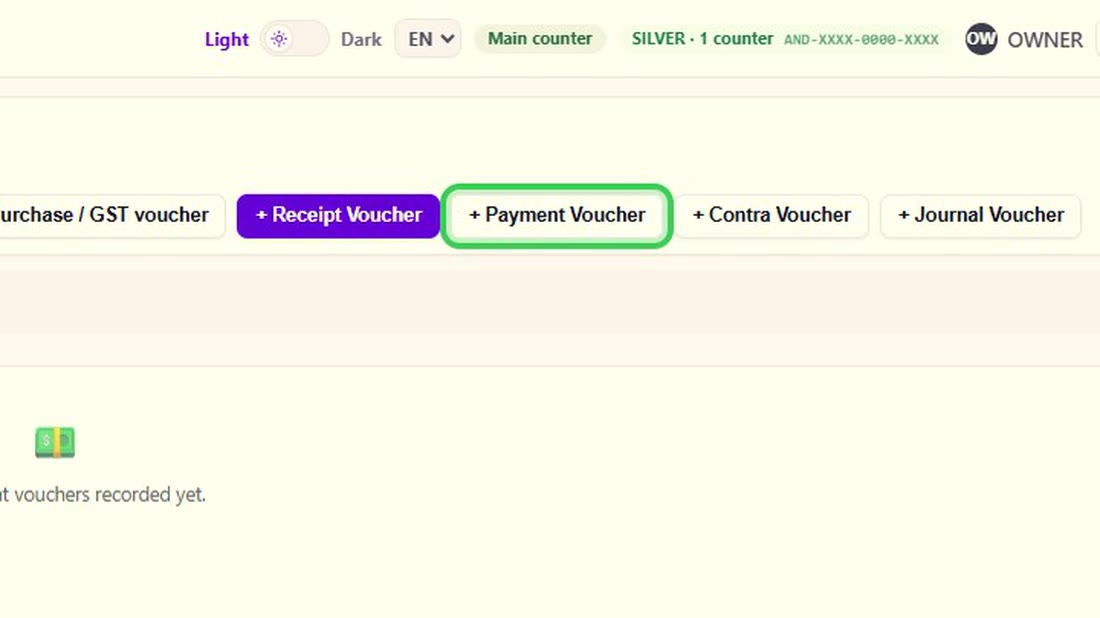 See the whole screen
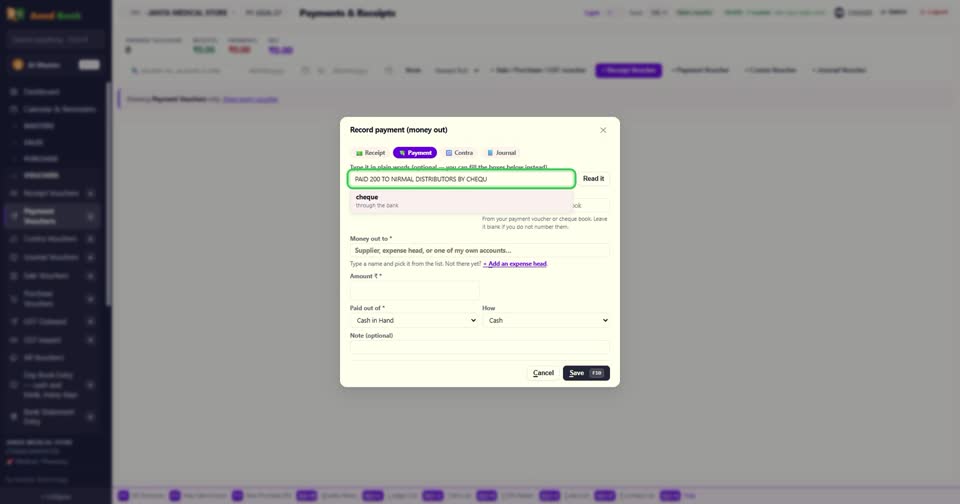
Step 3 सबसे तेज़ — एक line में लिखिए, जैसे कितना दिया, किसे, और कैसे। फिर Read it — boxes अपने आप भर जाते हैं।
▶ Watch this step · 0:19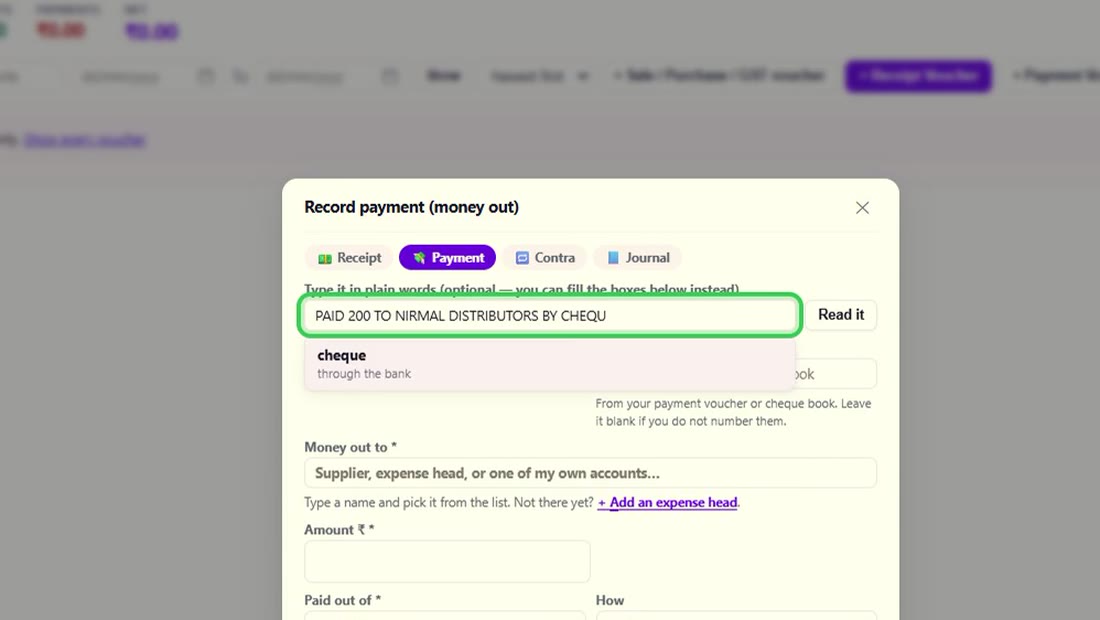 See the whole screen
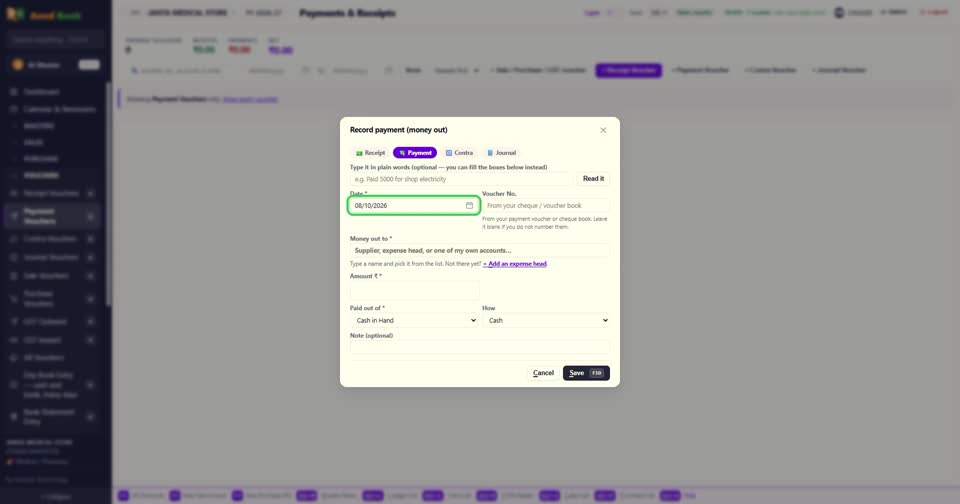
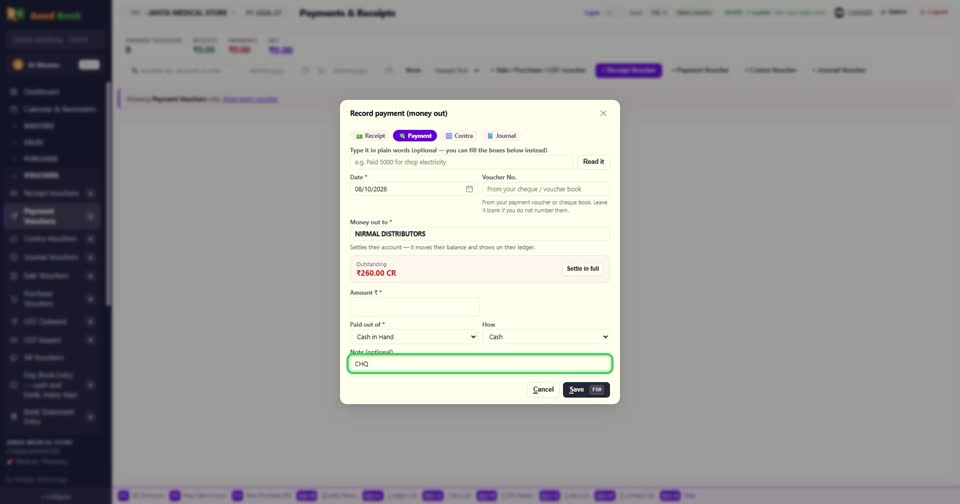
Step 4 या हाथ से। तारीख आज की। Voucher No. में अपनी cheque या voucher book का number, अगर रखते हैं।
▶ Watch this step · 0:30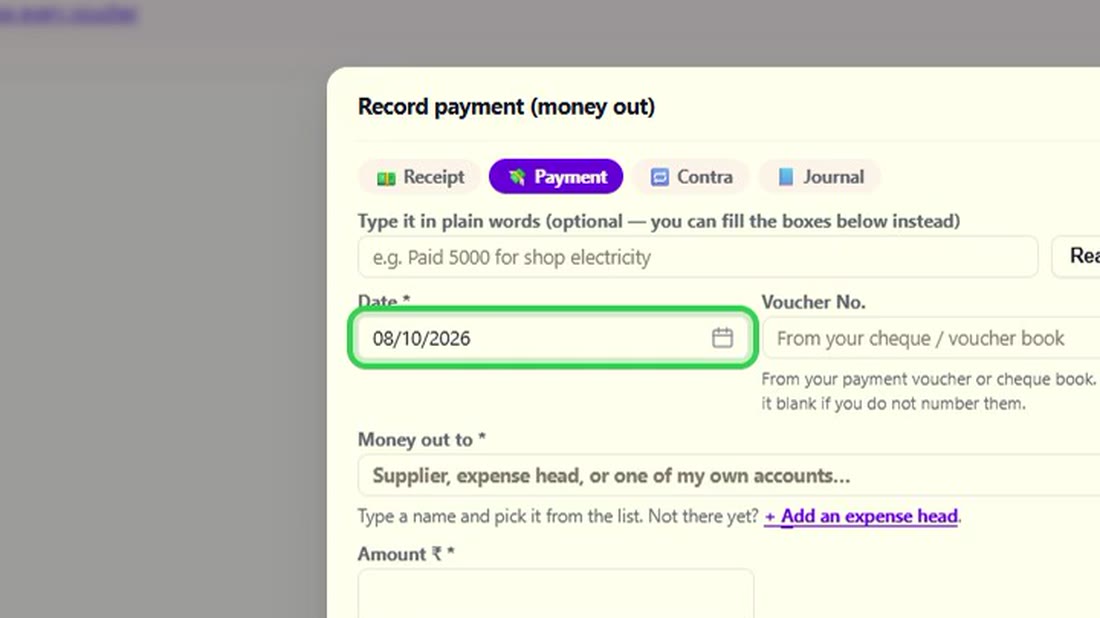 See the whole screen
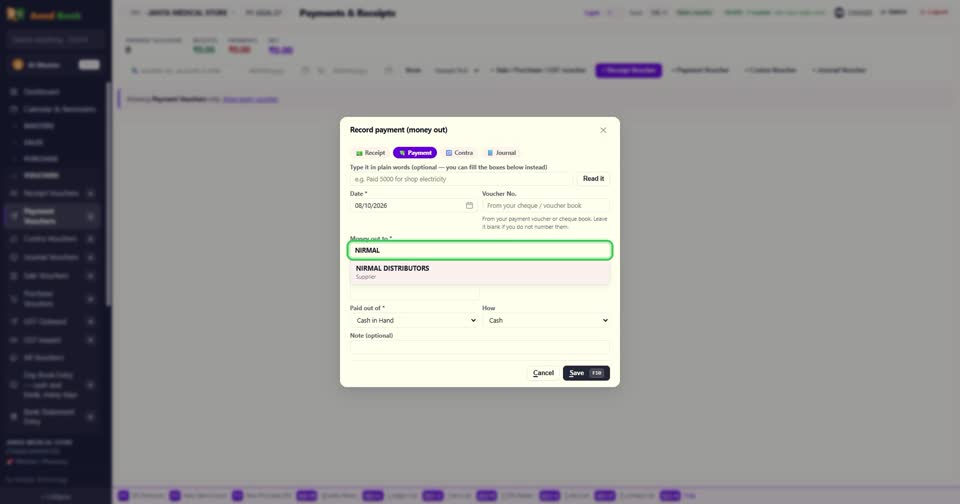
Step 5 Money out to में supplier चुनिए। नीचे लिखा आ जाता है — इससे उसका खाता बराबर होगा।
▶ Watch this step · 0:39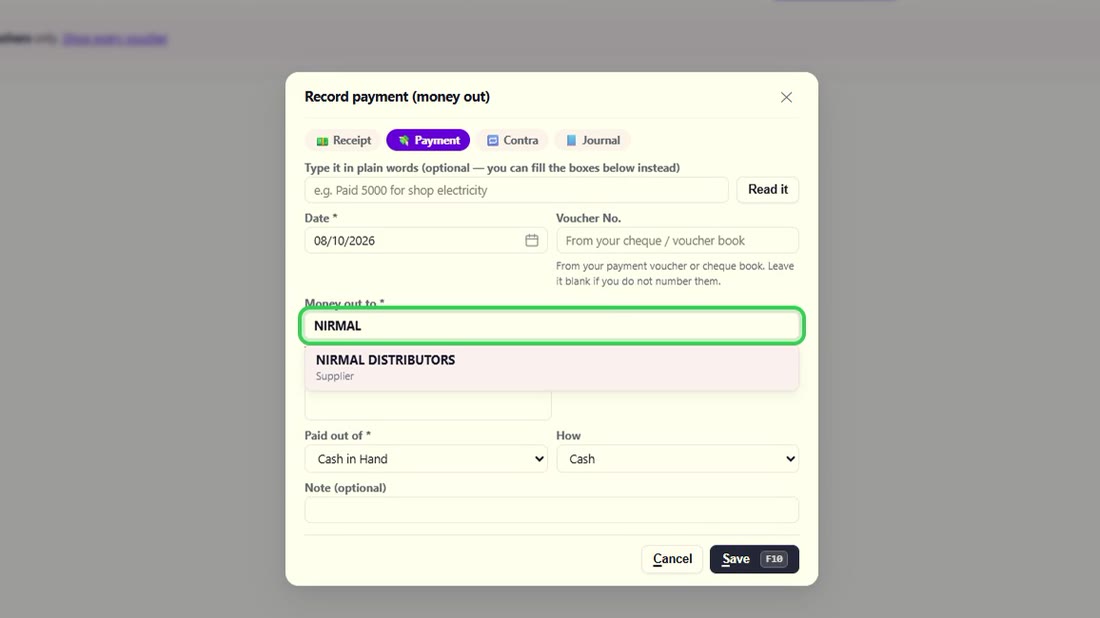 See the whole screen
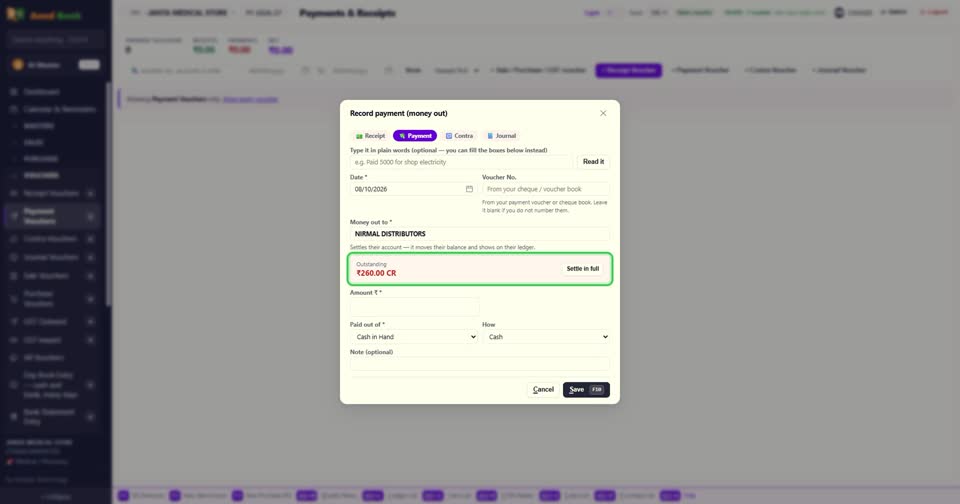
Step 6 उसे कितना देना बाकी है, वो दिखता है। पूरा दे रहे हैं, तो Settle in full।
▶ Watch this step · 0:46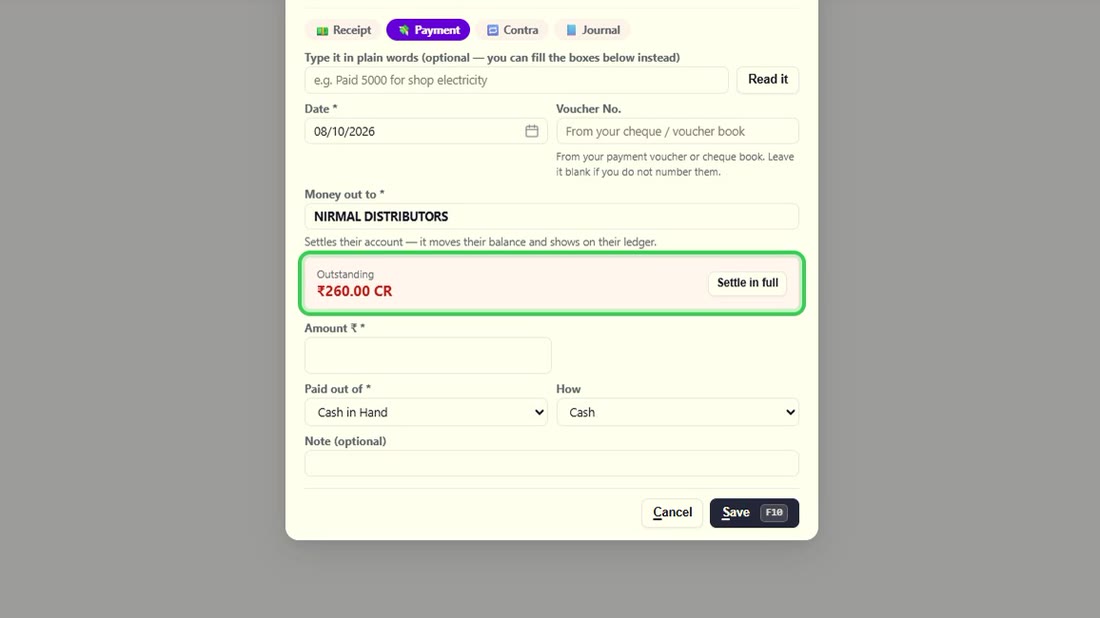 See the whole screen
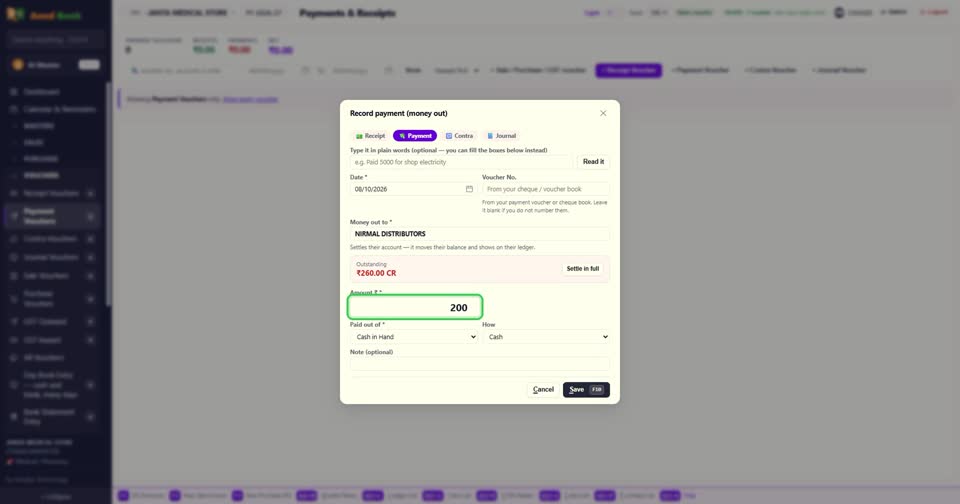
Step 7 कुछ हिस्सा दिया है, तो Amount में उतना ही। बाकी उसके खाते में रहेगा।
▶ Watch this step · 0:53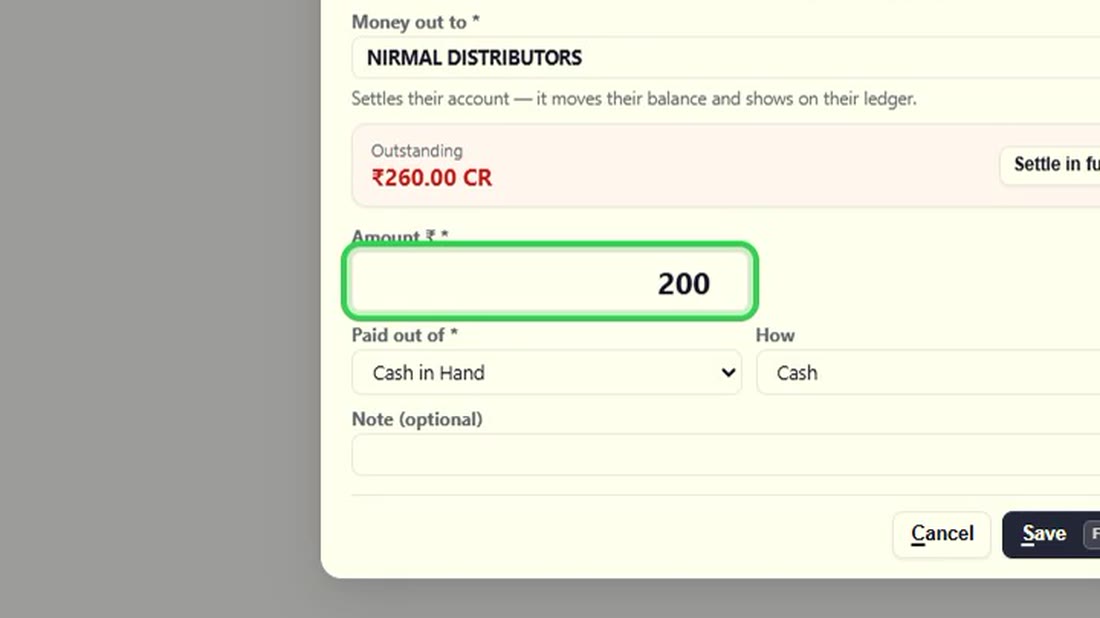 See the whole screen
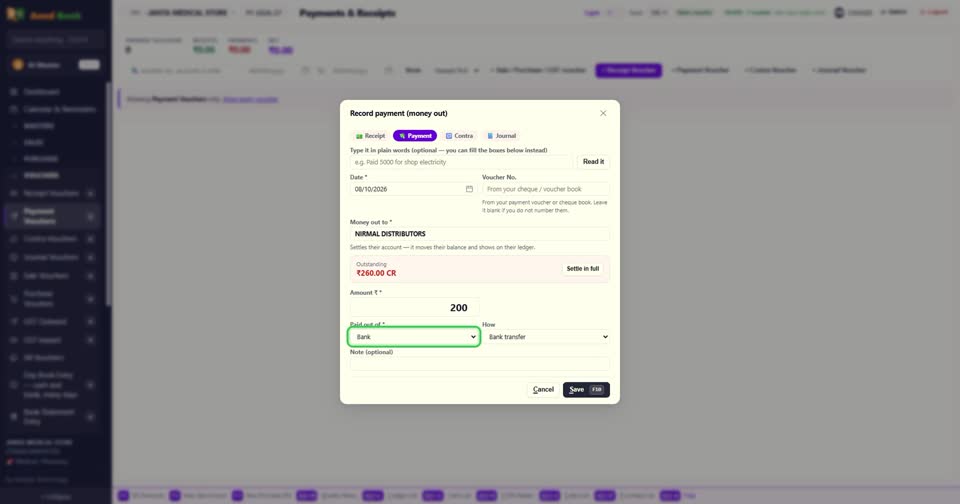
Step 8 Paid out of में cash या bank, और How में cash, UPI, cheque या card।
▶ Watch this step · 1:00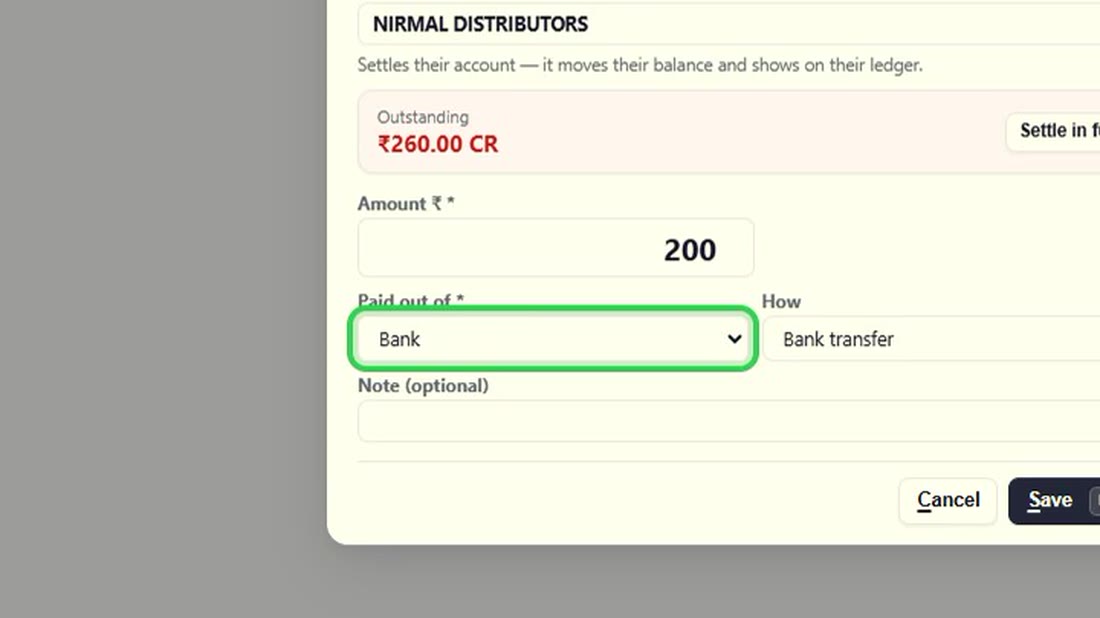 See the whole screen
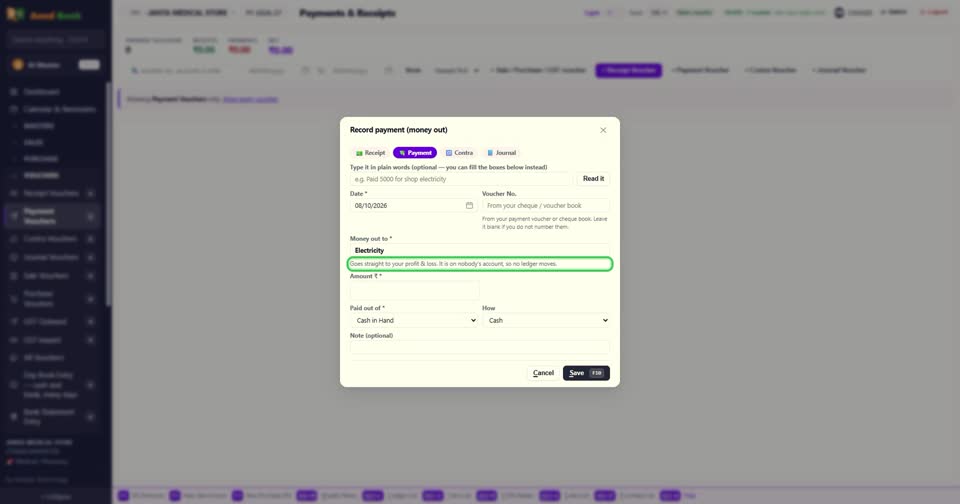
Step 9 यही box ख़र्चे के लिए भी है — जैसे बिजली का बिल। तब नीचे लिखा आता है कि ये सीधा profit and loss में जाएगा, किसी के खाते में नहीं।
▶ Watch this step · 1:07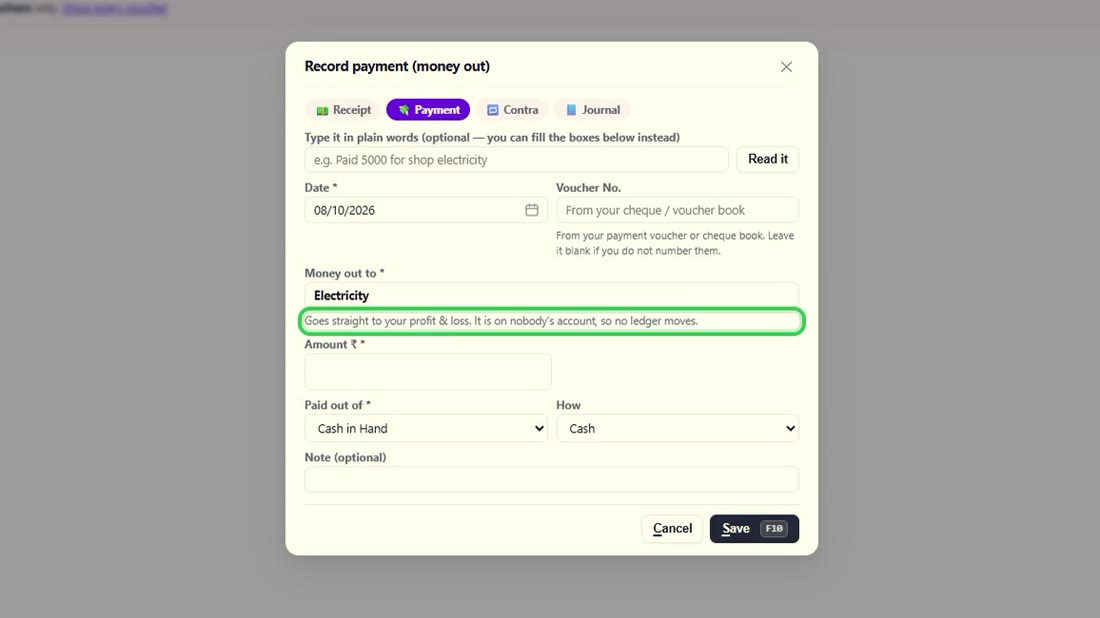 See the whole screen
Step 10 Note में cheque का number या कोई और बात।
▶ Watch this step · 1:19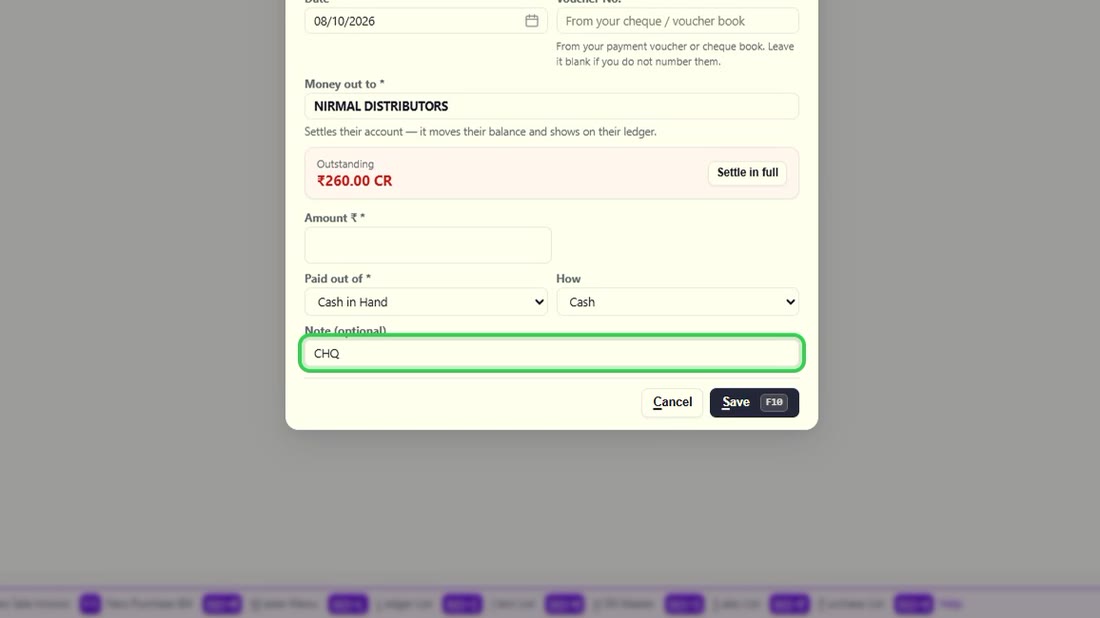 See the whole screen
Step 11 F10 से save। supplier को देना उतना कम, और cash या bank में उतना कम।
▶ Watch this step · 1:22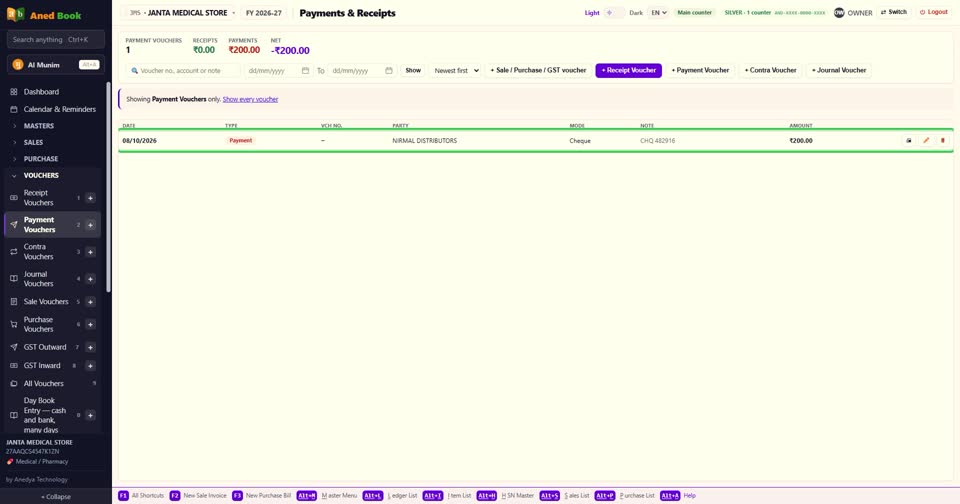
Step 12 बस। पैसा दिया — F6, नाम, रकम, F10।
▶ Watch this step · 1:30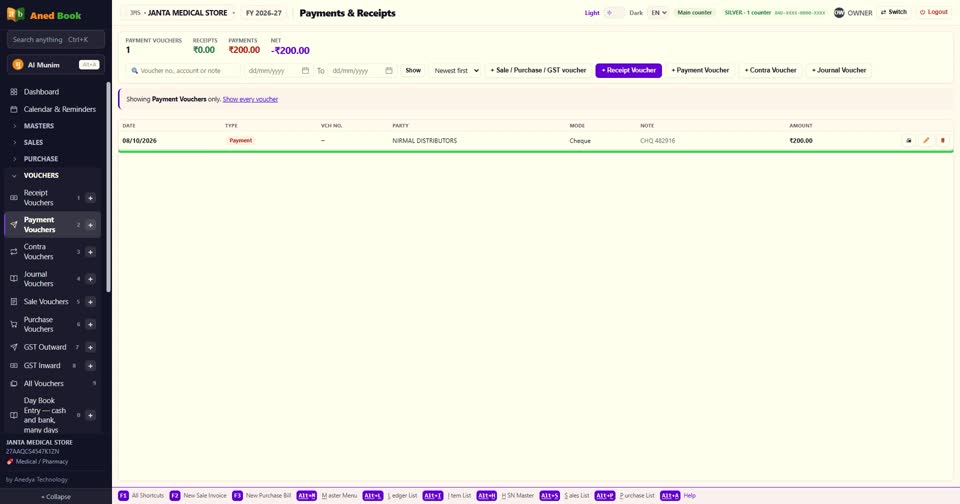
The screen
Every option on this screen (25)
Tap to open the full list ▾
In the same order and under the same headings as the software. A heading shut in the software is shut here too: click it, or type in the search box above.
At the top of the screen
In the window: New payment voucher
Tabs on this screen
At the top of the screen
▶ In the video — step 3 at 0:19
सबसे तेज़ — एक line में लिखिए, जैसे कितना दिया, किसे, और कैसे। फिर Read it — boxes अपने आप भर जाते हैं।
▶ Watch on YouTube from 0:19▶ In the video — step 4 at 0:30
या हाथ से। तारीख आज की। Voucher No. में अपनी cheque या voucher book का number, अगर रखते हैं।
▶ Watch on YouTube from 0:30▶ In the video — step 4 at 0:30
या हाथ से। तारीख आज की। Voucher No. में अपनी cheque या voucher book का number, अगर रखते हैं।
▶ Watch on YouTube from 0:30▶ In the video — step 5 at 0:39
Money out to में supplier चुनिए। नीचे लिखा आ जाता है — इससे उसका खाता बराबर होगा।
▶ Watch on YouTube from 0:39▶ In the video — step 9 at 1:07
यही box ख़र्चे के लिए भी है — जैसे बिजली का बिल। तब नीचे लिखा आता है कि ये सीधा profit and loss में जाएगा, किसी के खाते में नहीं।
▶ Watch on YouTube from 1:07▶ In the video — step 6 at 0:46
उसे कितना देना बाकी है, वो दिखता है। पूरा दे रहे हैं, तो Settle in full।
▶ Watch on YouTube from 0:46▶ In the video — step 7 at 0:53
कुछ हिस्सा दिया है, तो Amount में उतना ही। बाकी उसके खाते में रहेगा।
▶ Watch on YouTube from 0:53▶ In the video — step 10 at 1:19
Note में cheque का number या कोई और बात।
▶ Watch on YouTube from 1:19