Aned Book help › Menu › Reports
Stock Analysis
In the software: Reports › Stock Analysis
Basic, Silver, Gold onlyStock analysis: slow and fast movers, value, ageing.
Questions about Stock Analysis
Step by step
More answers
The screen
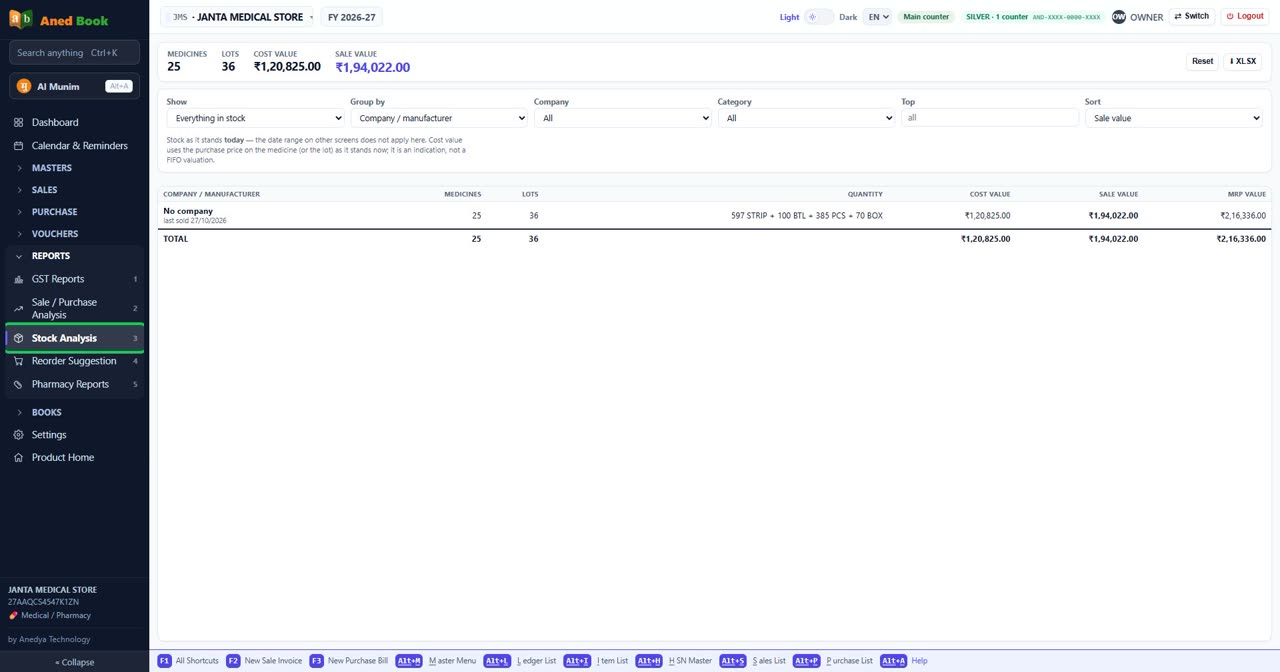
Every option on this screen (15)
Tap to open the full list ▾
In the same order and under the same headings as the software. A heading shut in the software is shut here too: click it, or type in the search box above.
At the top of the screen
Reset
Clears the choices you made and shows the report as it first opened.
⬇ XLSX
Saves this report as an Excel file.
Box
Show
Shows the list for the dates or words you typed. Choices: Everything in stock · Not sold recently · At or below reorder level · Expiring soon · Negative stock
Box
Group by
How the rows are put together — for example by item, by party or by month. Choices: Company / manufacturer · Category · Item · Batch / lot · MRP · Expiry month
Box
Company
Only one company’s items. Choices: All
Box
Category
A group of your own choosing, used to sort and filter. Choices: All
Box
Top
How many rows to show.
Box
Sort
The order of the rows. Choices: Sale value · Cost value · Quantity · Name, A to Z
Column
Company / manufacturer
The company that makes the items.
Column
Medicines
How many of its items you stock.
Column
Lots
How many batches.
Column
Quantity
How many in stock.
Column
Cost value
The stock’s value at purchase cost.
Column
Sale value
The stock’s value at sale price.
Column
MRP value
The stock’s value at MRP.
Messages you may see here (1)
Tap to open ▾
Every question and warning this screen can show, in the software’s own words. A “…” is a name, number or date filled in at the time.
Short notes at the bottom of the screen (1)
- Short note Nothing to export
Still stuck? Press Alt + A inside the software and ask in your own words — it
works with no internet. Or talk to us on WhatsApp, phone or e-mail.