Aned Book help › Menu › Settings
Printer setup
In the software: Settings › Printer setup (Settings, then the tab on the left)
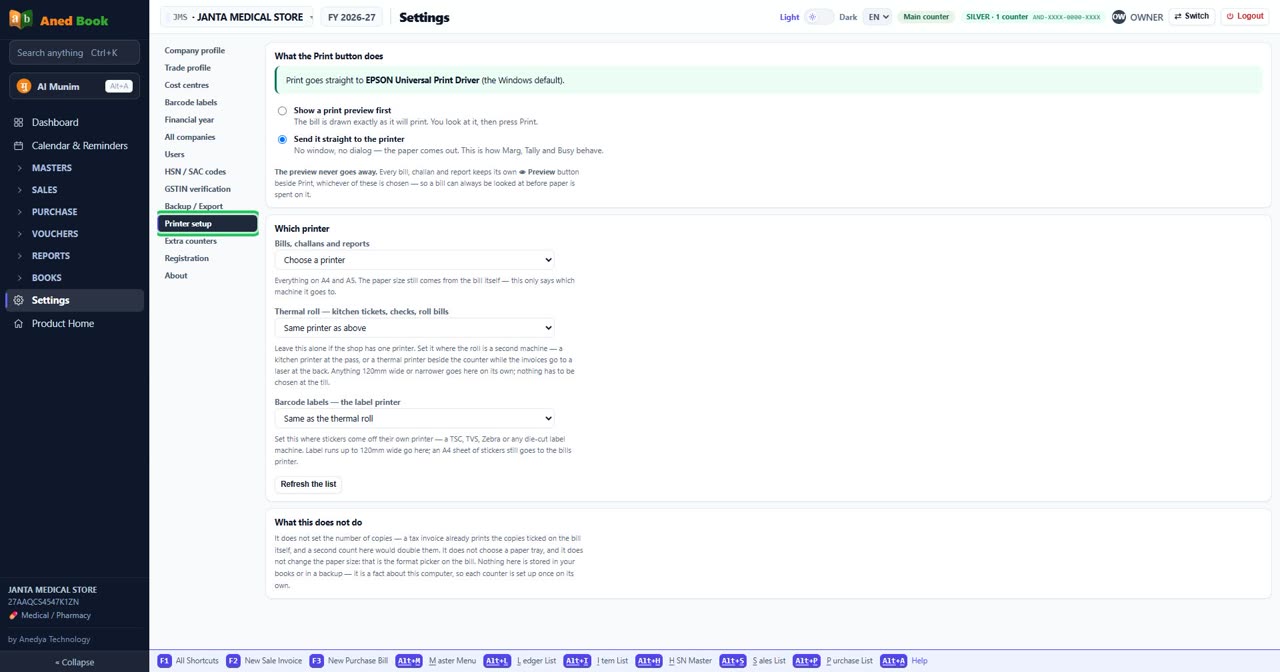
Step by step
Every option on this screen
Buttons
- Refresh the list
Boxes to fill in
- Bills, challans and reports
- Thermal roll — kitchen tickets, checks, roll bills
- Barcode labels — the label printer
Tick boxes and choices
- Show a print preview first — The bill is drawn exactly as it will print. You look at it, then press Print.
- Send it straight to the printer — No window, no dialog — the paper comes out. This is how Marg, Tally and Busy behave.
Sections on this screen
- What the Print button does
- Which printer
- What this does not do
Still stuck? Press Alt + A inside the software and ask in your own words — it
works with no internet. Or talk to us on WhatsApp, phone or e-mail.