How to switch a feature on or off for your shop
Every edition — Lite, Basic, Silver and GoldYour trade is fixed when the company is created. What it decided — batches, expiry, sizes, weight and the rest — can each be switched on or off.
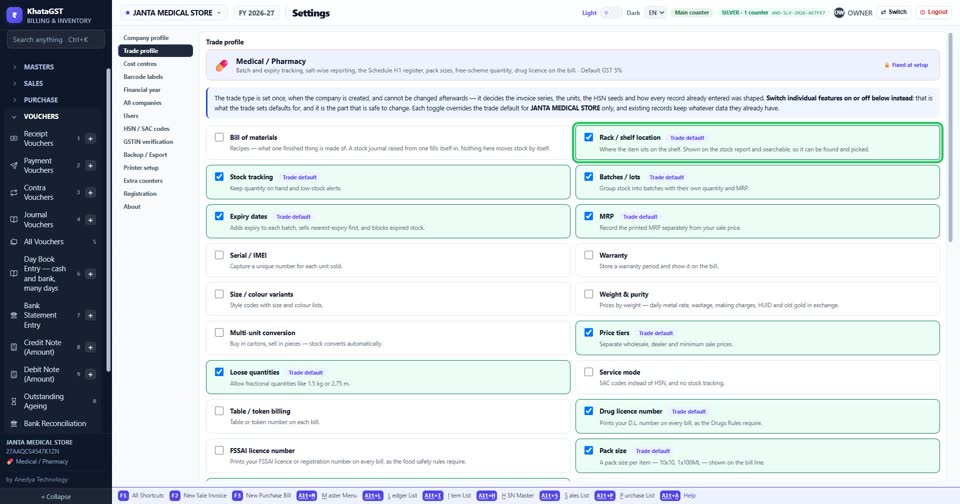
Open Settings, Trade profile. Your trade is shown at the top, marked “Fixed at setup”.
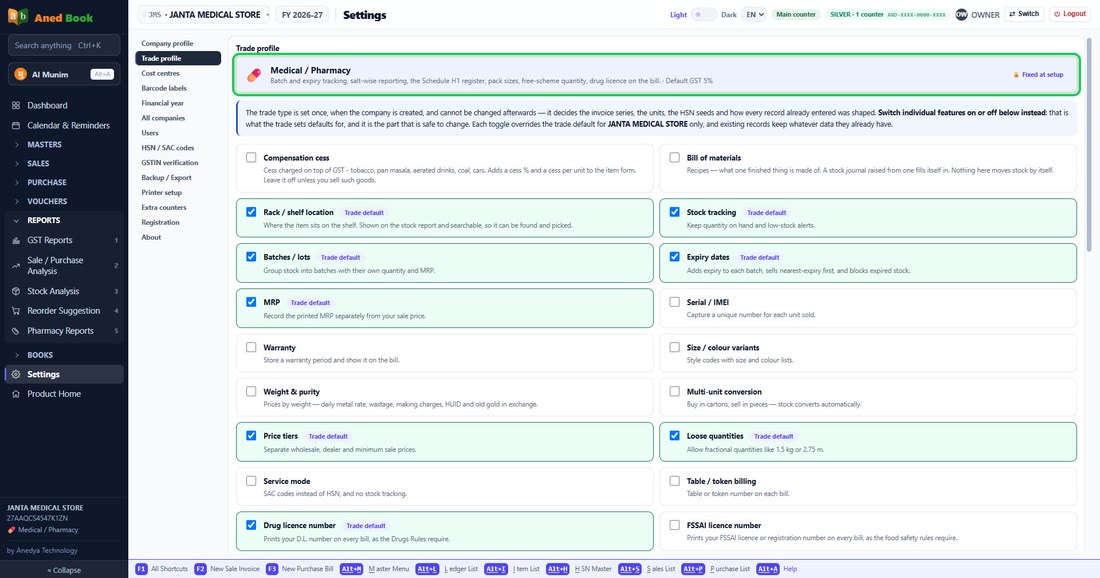 See the whole screen
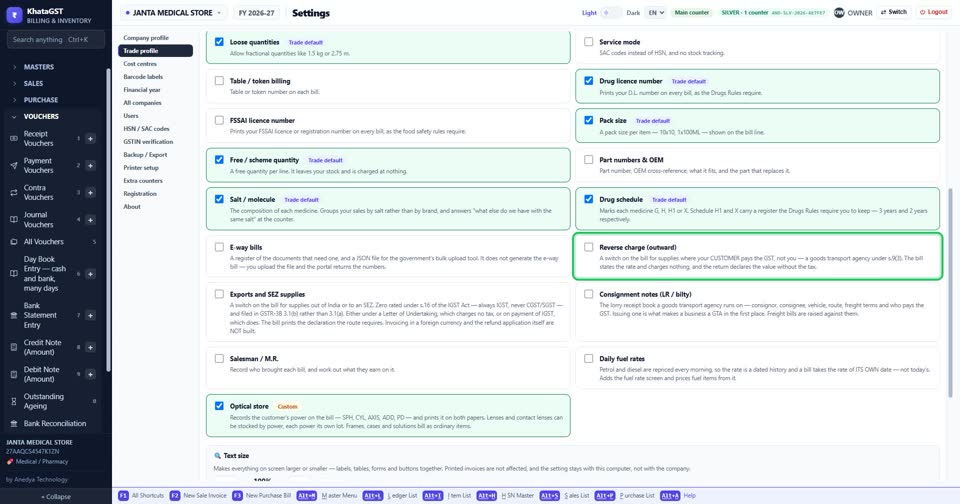
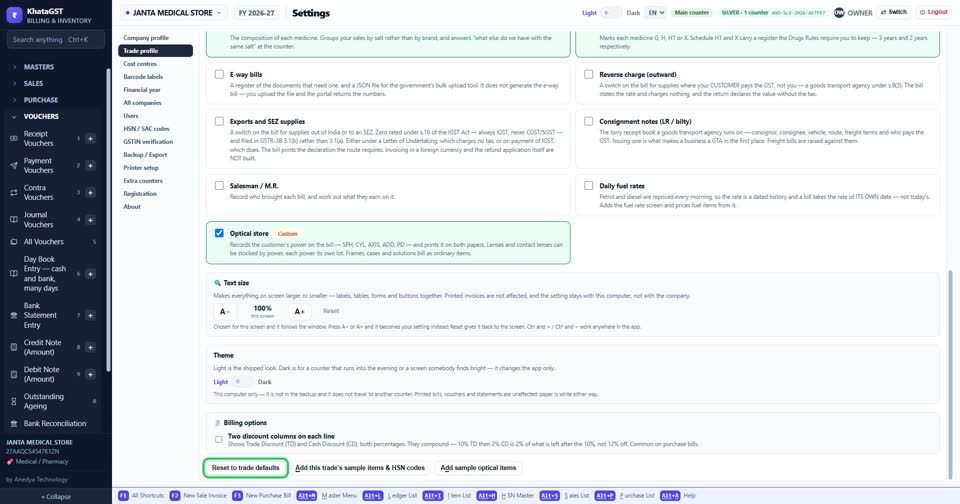
Switch individual features on or off. Each switch changes this company only, and records already entered keep the data they have.
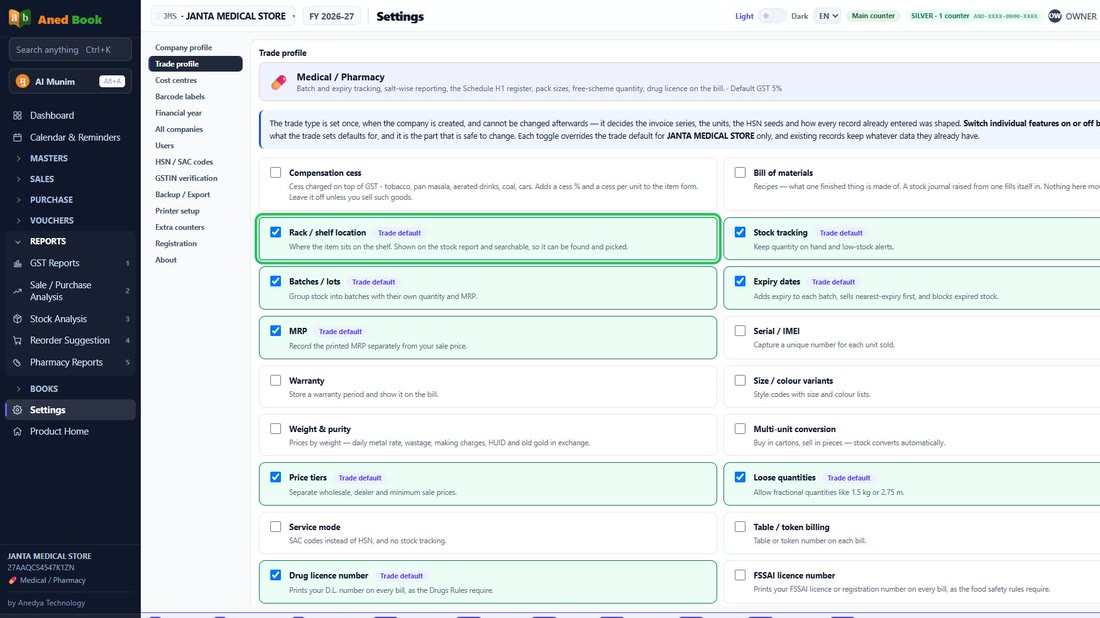 See the whole screen
“Trade default” marks what your trade switched on; “Custom” marks a switch you changed yourself.
 See the whole screen
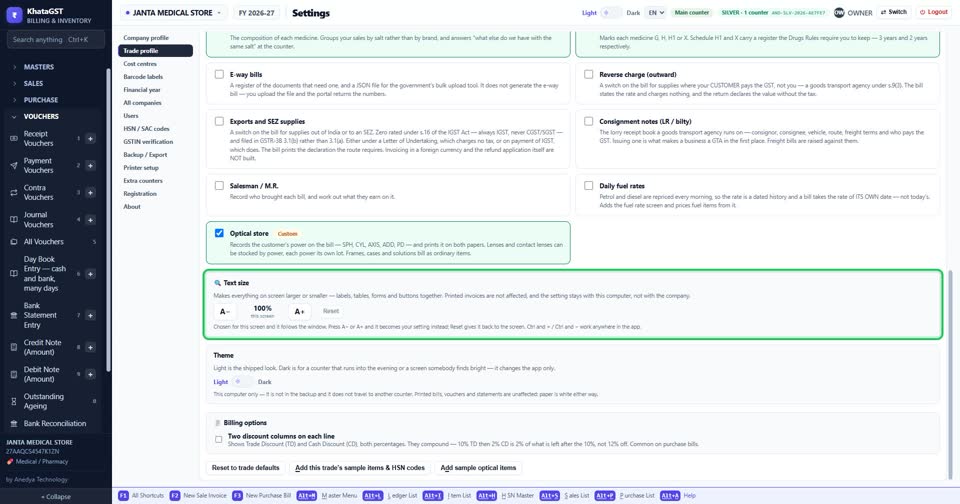
Text size and theme change the screen on this computer only. Printed bills are not affected.
 See the whole screen
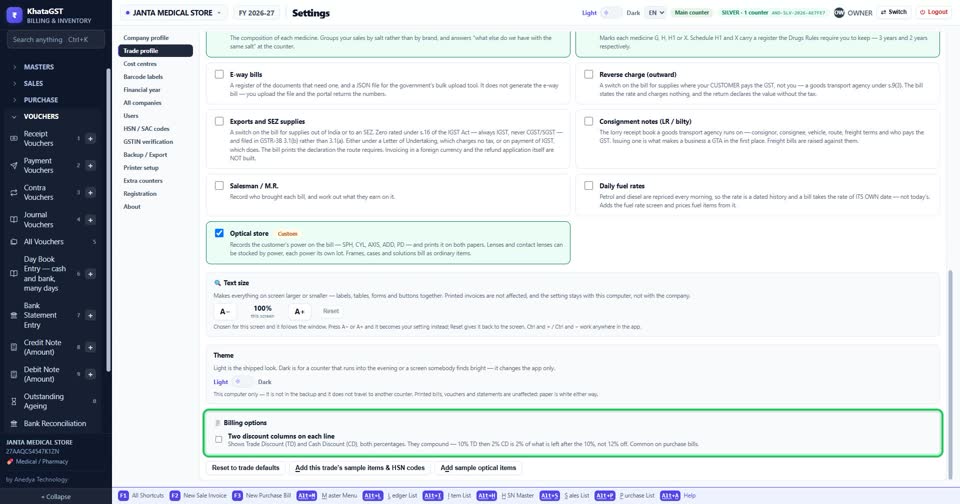
Two discount columns puts Trade Discount and Cash Discount on each line. They compound: 10% then 2% is 2% of what is left, not 12%.
 See the whole screen
Reset to trade defaults undoes every switch you changed.
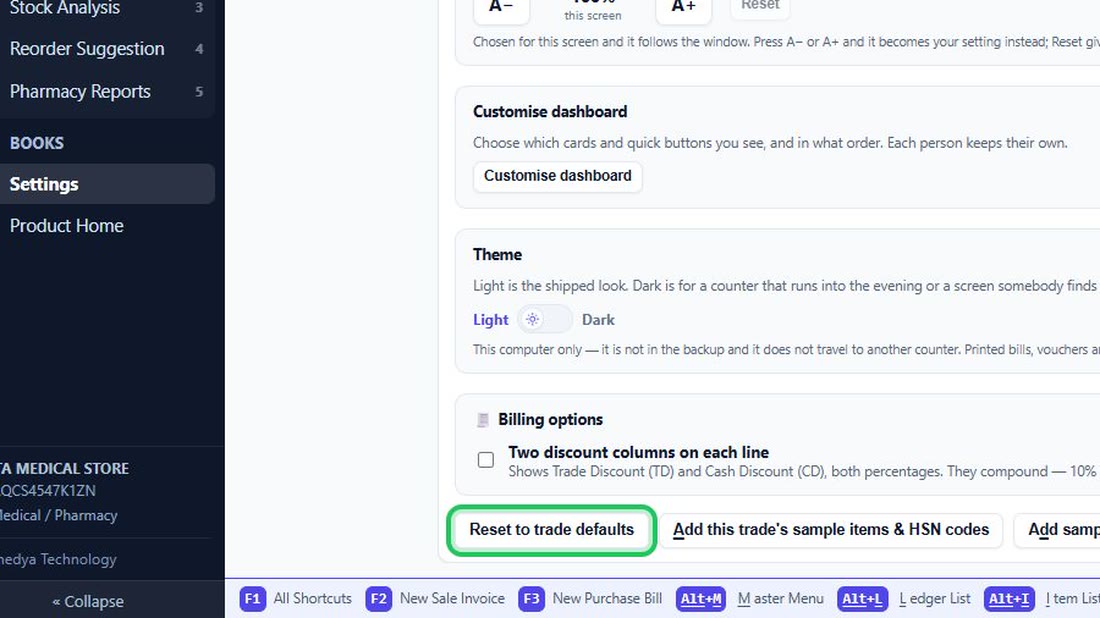 See the whole screen
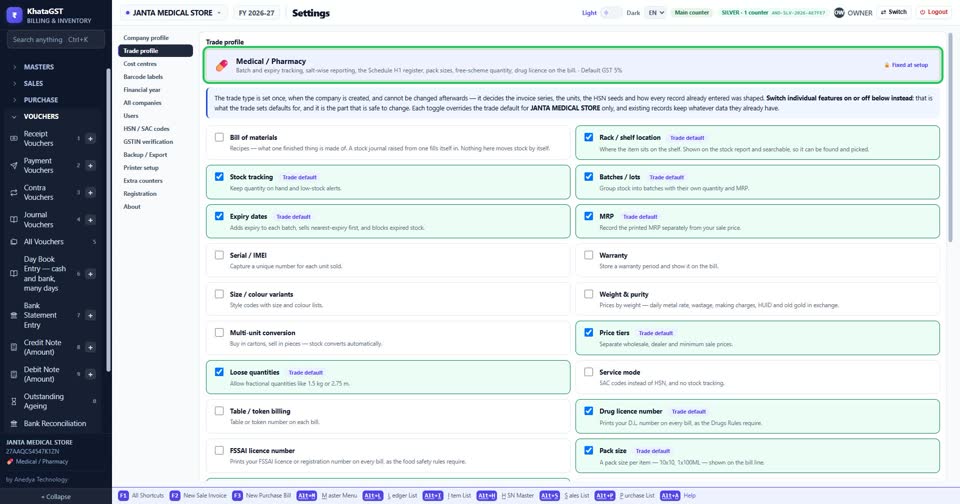
Did this answer your question?
No — ask us on WhatsApp
Still stuck? Press Alt + A inside the software and ask in your own words — it
works with no internet. Or talk to us on WhatsApp, phone or e-mail.