Getting started — download, install, and make your first bill
Every edition — Lite, Basic, Silver and GoldFrom the website to your first bill on a new computer. The 14-day trial is the whole software, needs no card and no account, and starts by itself the first time Aned Book opens.
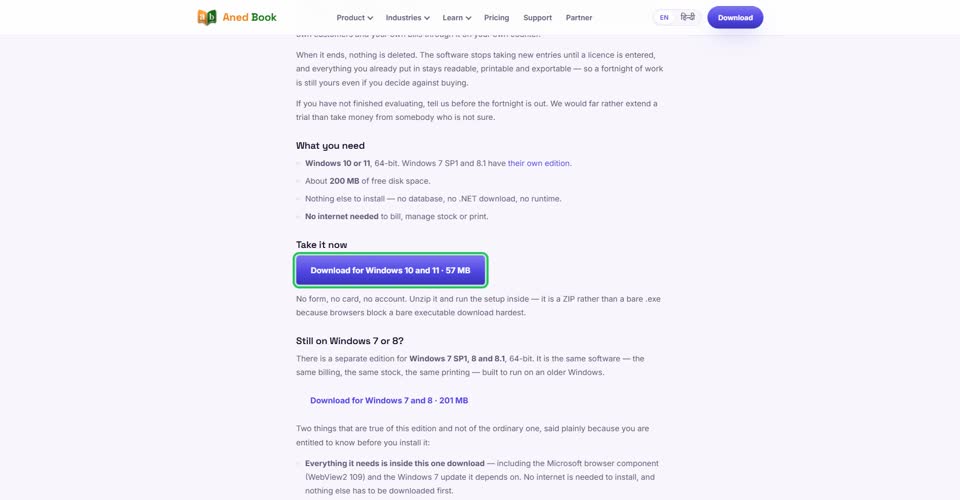
On the shop’s computer, open anedya.net and choose Download. Press “Download for Windows 10 and 11”. There is no form to fill and no card to give.
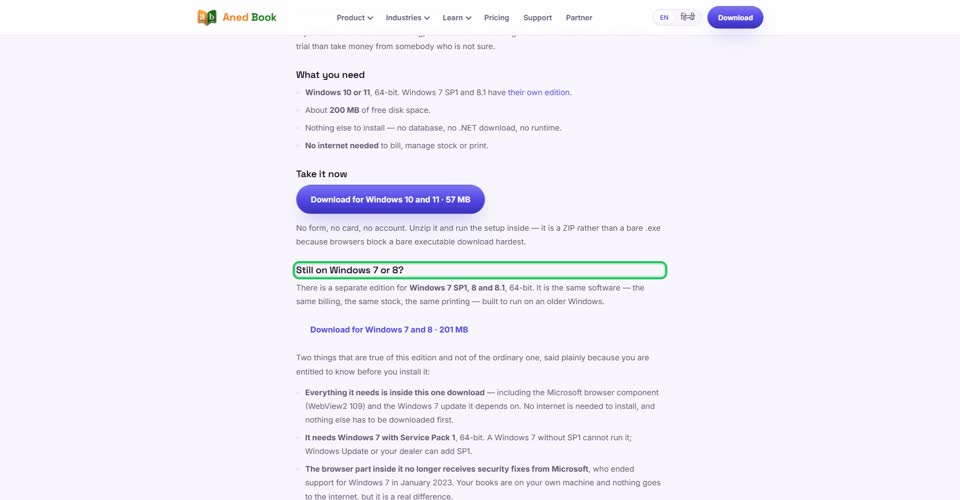
On Windows 7 or 8, take the separate download for Windows 7 and 8 further down the same page. It is the same software.
The download is a ZIP. Open it from your Downloads folder, unzip it, and run the setup inside.
If Windows says “Windows protected your PC”, choose More info, then Run anyway. That notice is about code signing, not about what is in the file.
Read the licence agreement, choose “I accept the agreement”, and press Next.
Choose the folder. Your books, licence and backups all live inside it, so setup offers a drive other than the Windows drive when the computer has one — a Windows reload formats that drive and everything on it.
Tick “Create a desktop shortcut” if you want one, and press Install.
Leave “Start Aned Book now” ticked and press Finish.
Aned Book opens on its home page. The 14-day trial has already started — every feature, nothing to enter. Press “Set up my business”.
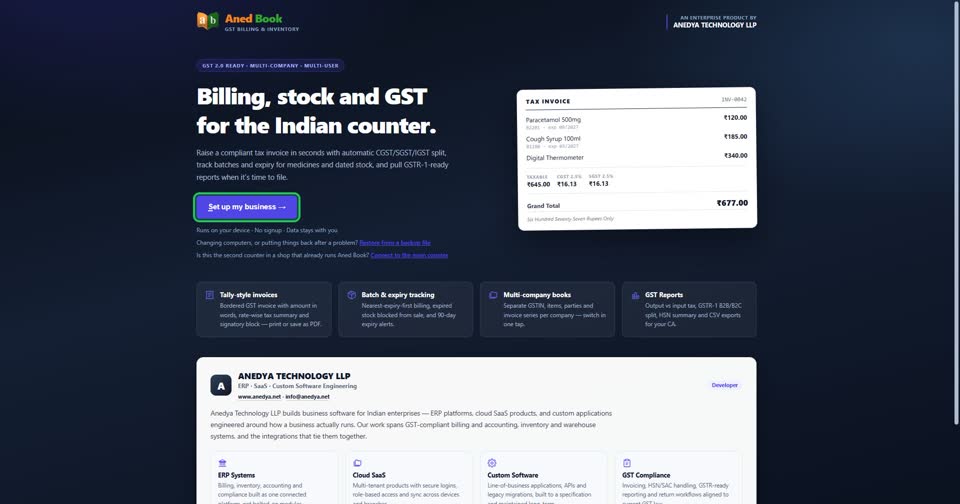
Moving from another computer? Use “Restore from a backup file” instead. Adding a second counter to a shop that already runs Aned Book? Use “Connect to the main counter”.
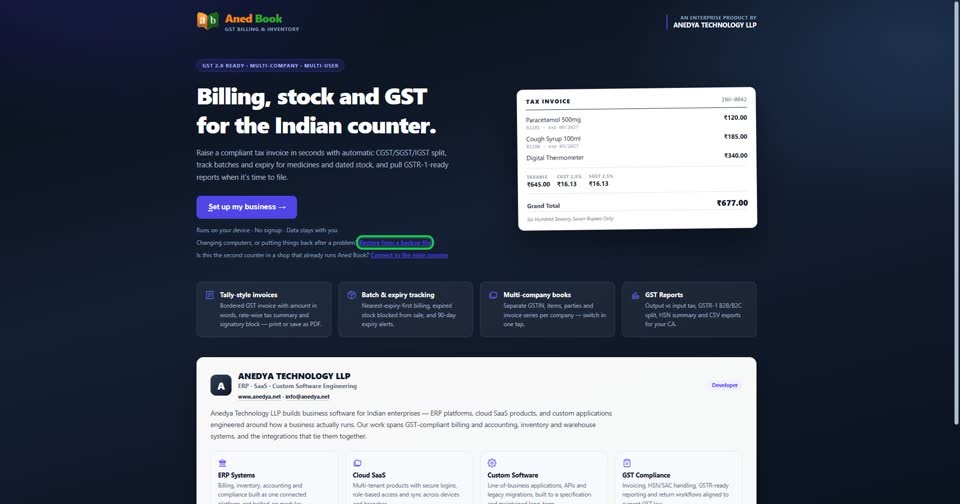
Choose your kind of business. It decides which features start switched on — batch and expiry for a pharmacy, size and colour for clothes, IMEI for mobiles. The trade is fixed once the company is made, but every feature can still be switched on or off in Settings.
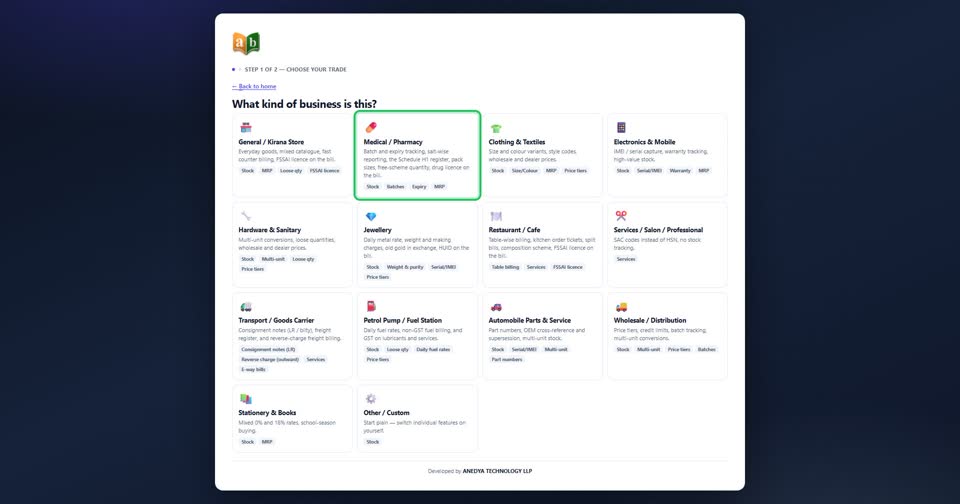
The top of the page lists what your trade switched on, and its usual GST rate.
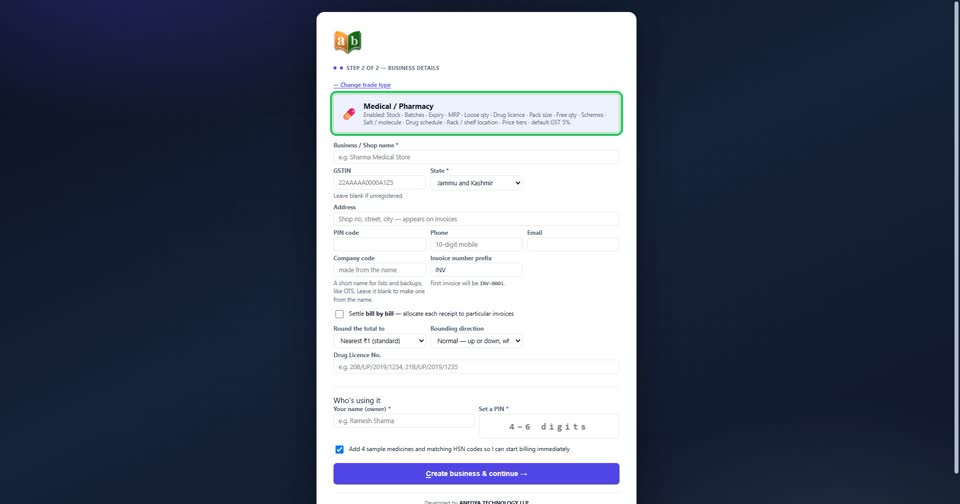
Type the shop’s name exactly as it should print on your bills.
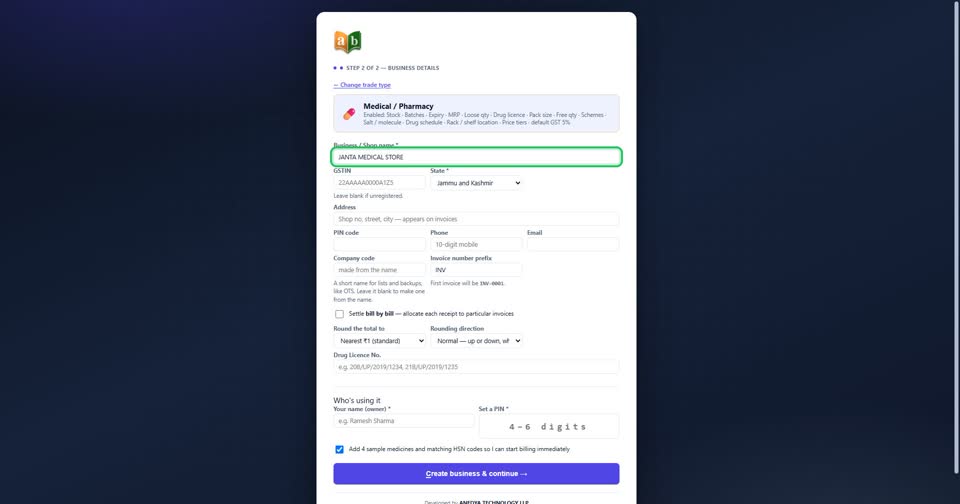
Type your GST number. It is checked as you type, and the State fills in from it. Not registered? Leave it blank and choose your State yourself — the State decides CGST + SGST or IGST on every bill.
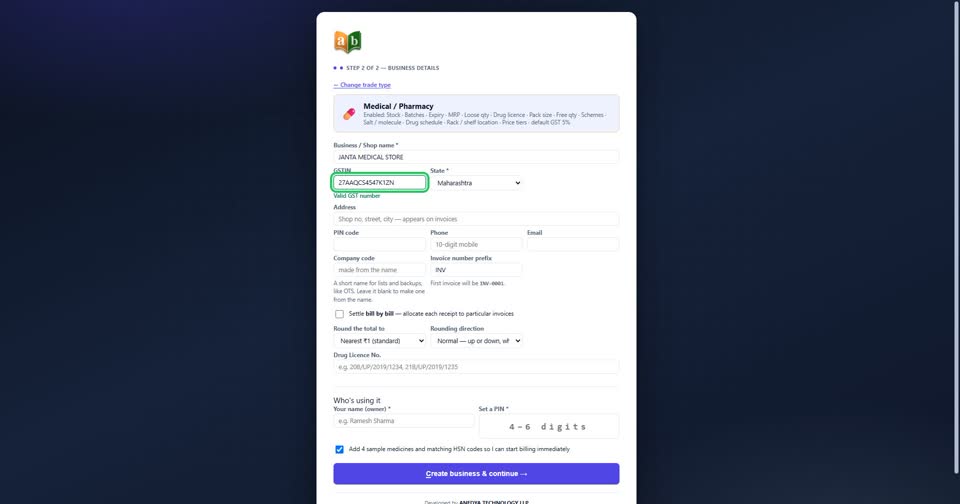
Address, PIN code, phone and e-mail print on every bill.
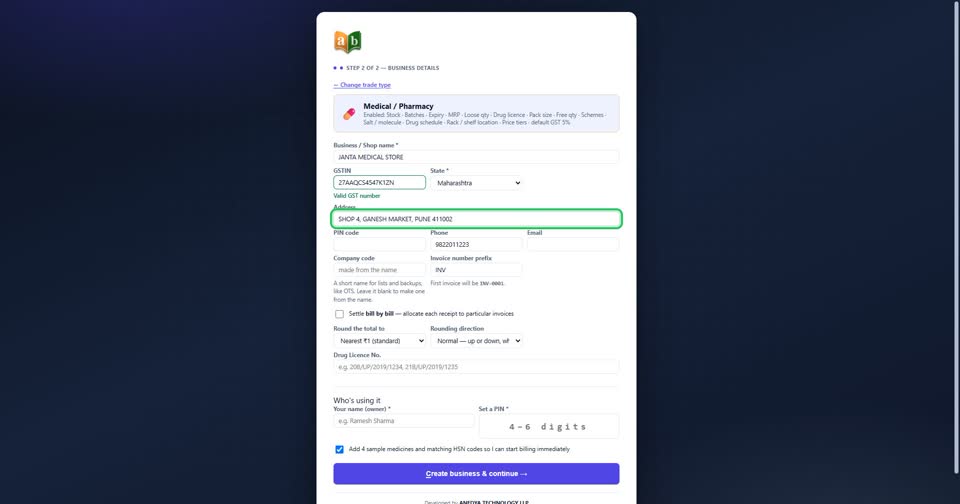
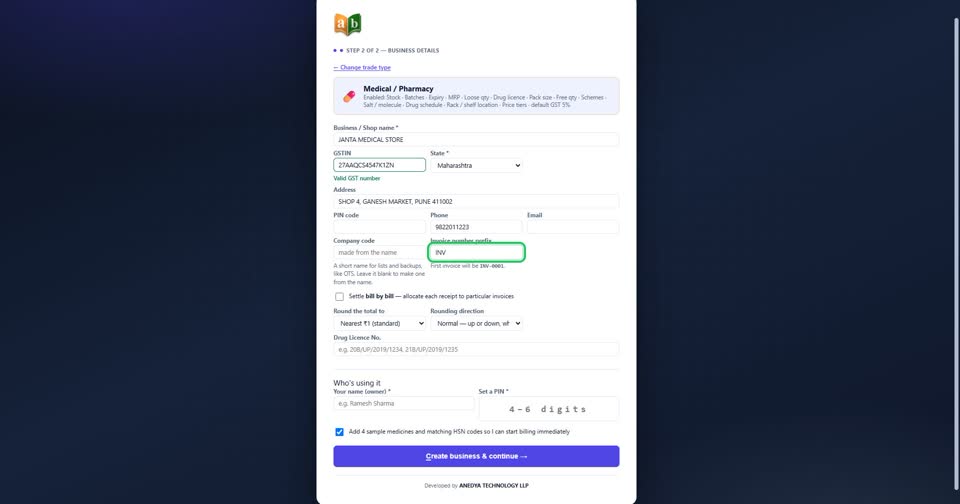
The invoice number prefix: with INV your first bill is INV-0001. Type your own letters if you prefer.
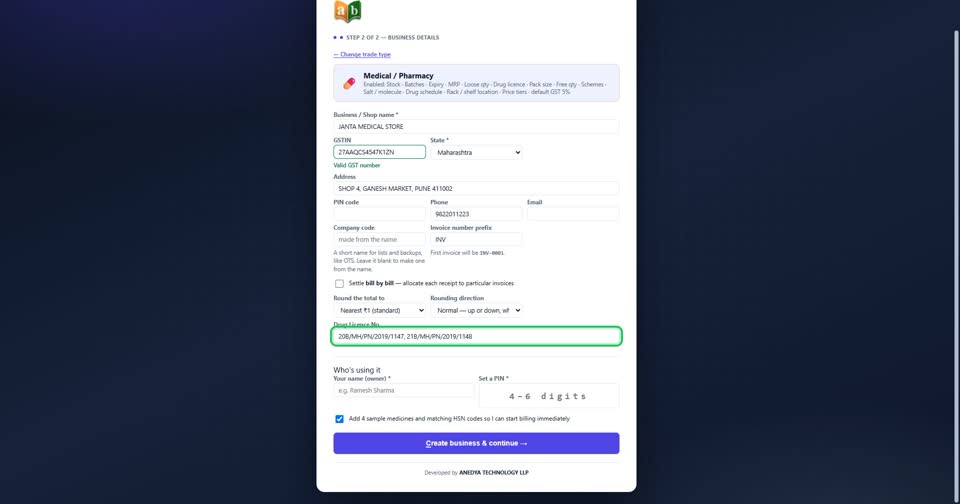
A chemist’s drug licence numbers go here and print on the bill. Each trade asks only for what its own bill needs.
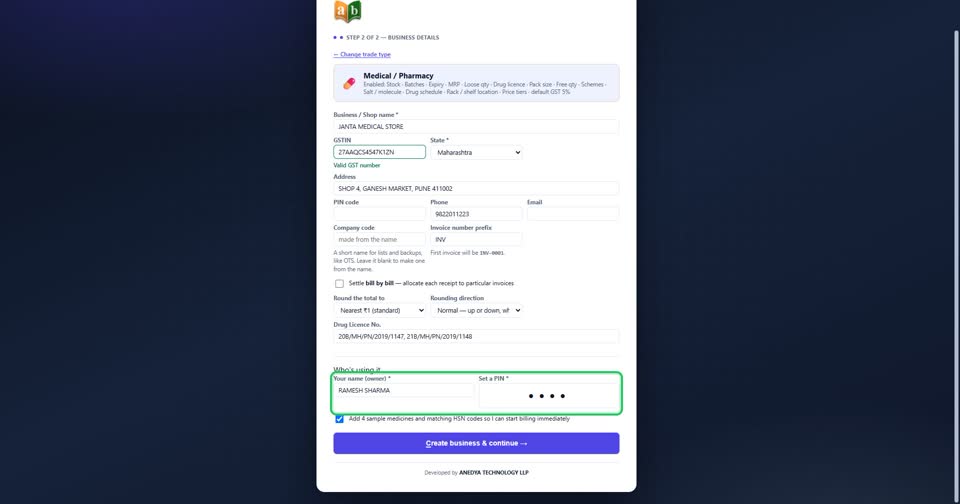
Under “Who’s using it”, type your own name and set a PIN of 4 to 6 digits. Every bill records who made it.
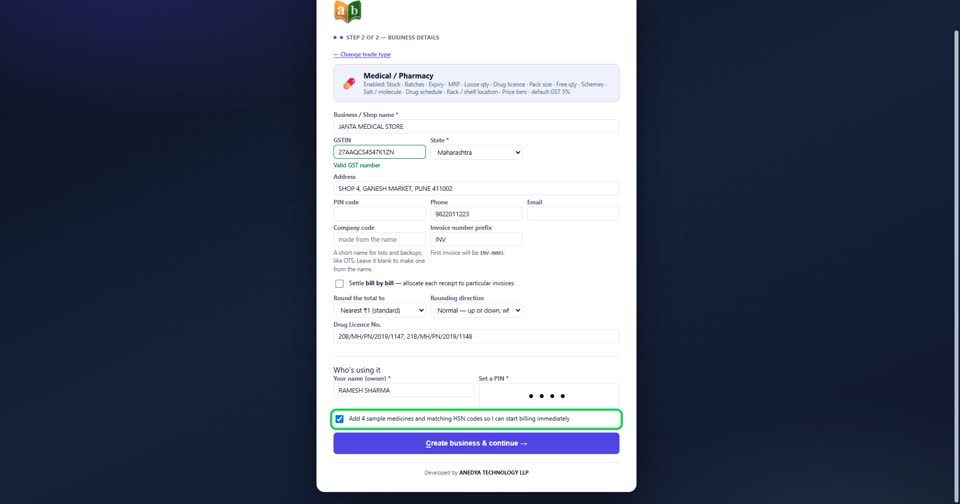
Leave this ticked to start with a few sample items and their HSN codes — enough for a practice bill. Untick it to start with an empty list.
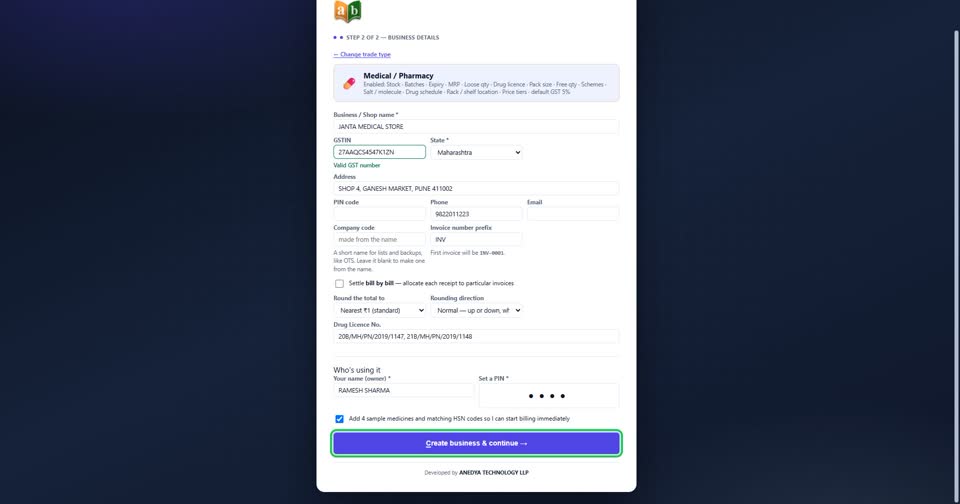
Press “Create business & continue”.
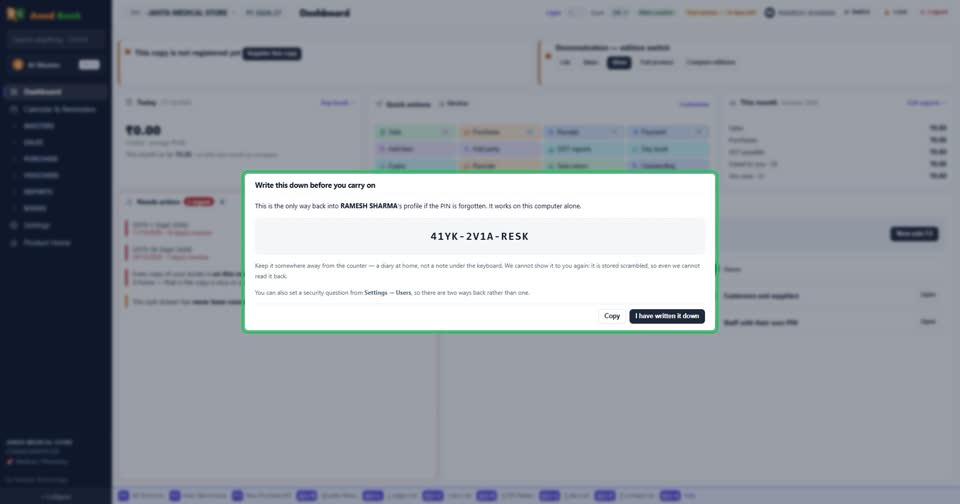
Write the recovery code down and keep it somewhere safe. It is shown only this once, and it is the only way back in if the owner’s PIN is ever forgotten.
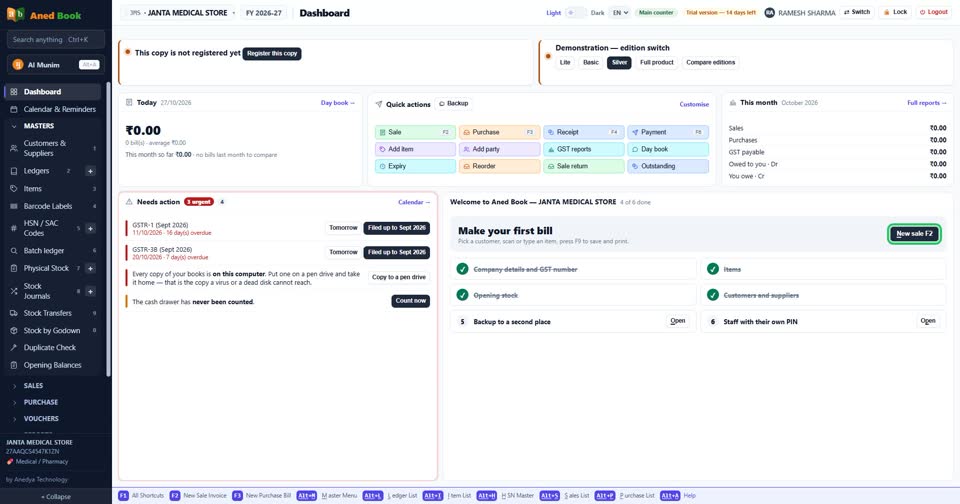
The dashboard opens with your first steps. Each one ticks itself when it is done — the books are read, not a box you tick.
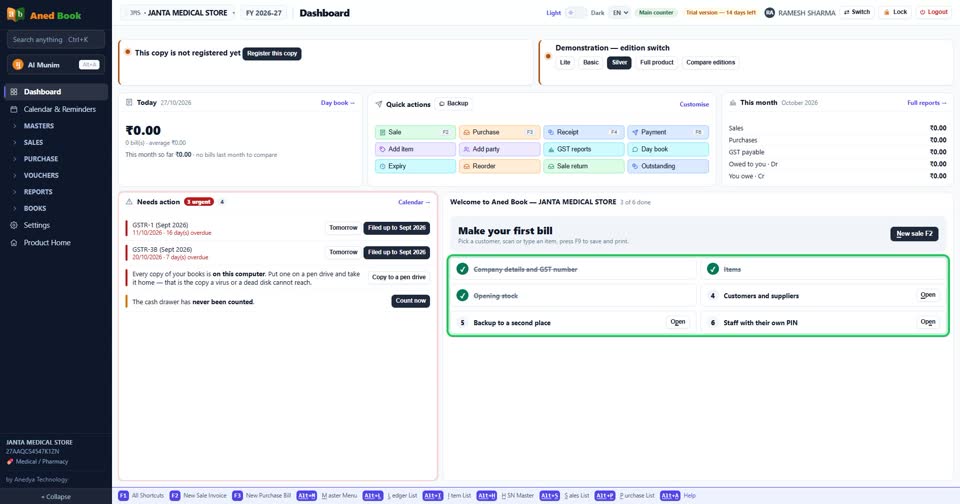
Add your customers and suppliers. On a customer, the GST number and State decide the tax on their bills; a walk-in needs neither.
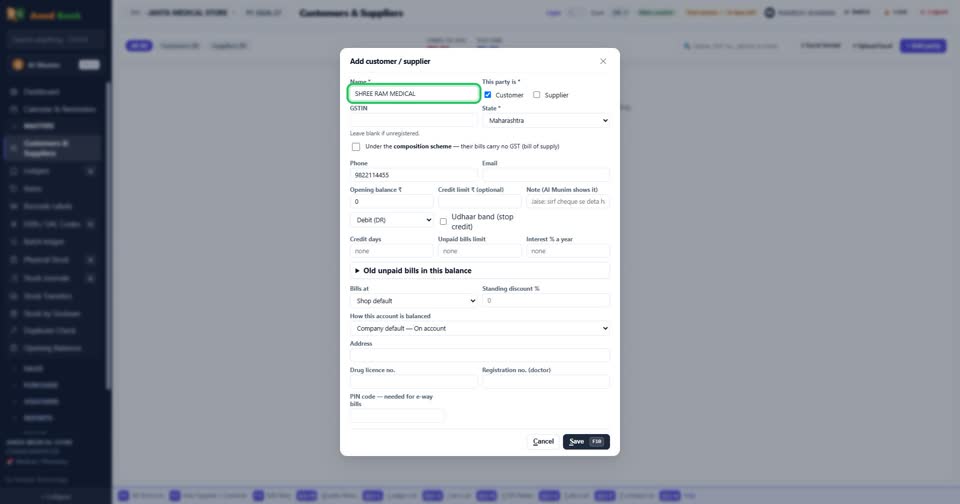
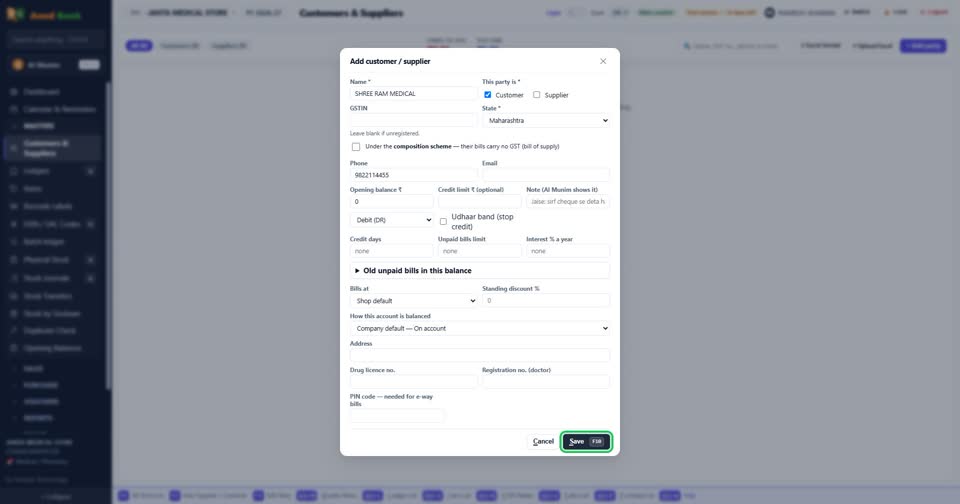
Press Save, or F10.
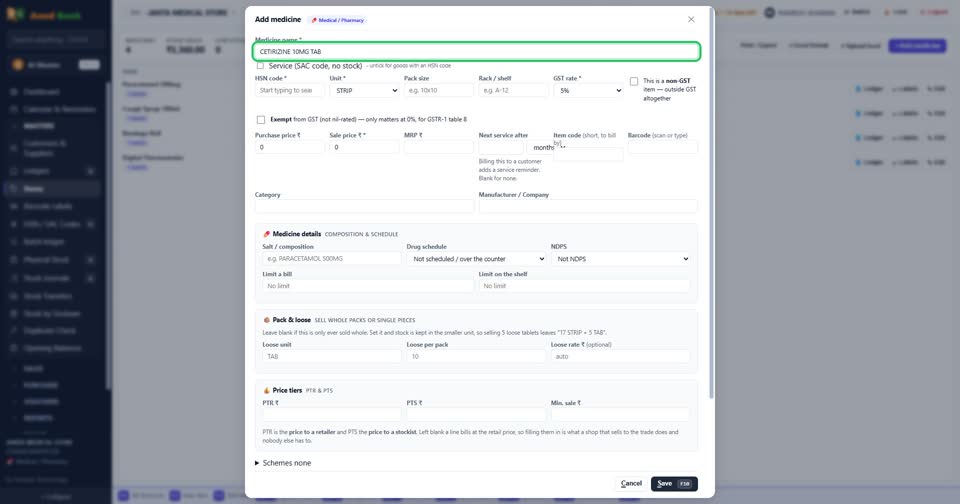
Then your items: name, HSN code, GST rate, unit and prices. Press + New Item, or F2 on the item list.
Back on the dashboard, press New Sale (F2) for your first bill.
Pick the customer, then each item and its quantity. The tax works itself out from the item and the customer’s State.
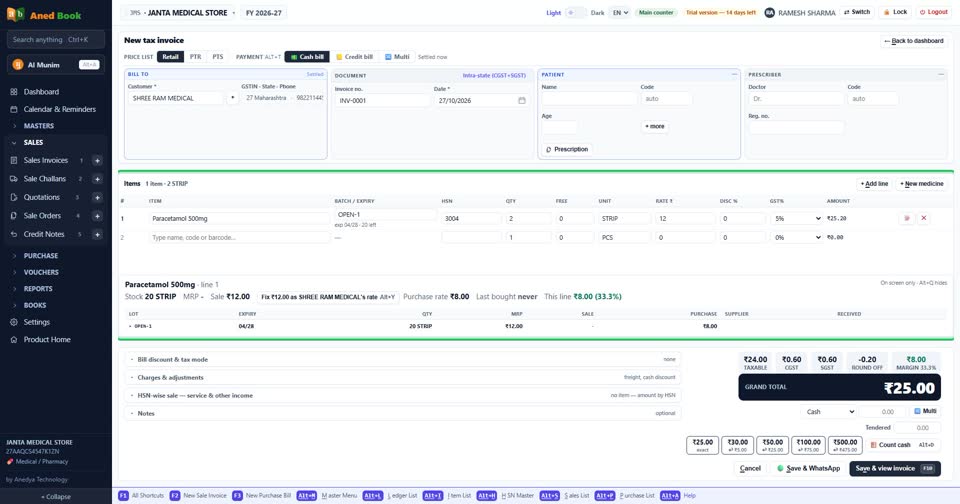
Press “Save & view invoice” (F10). “Save & WhatsApp” saves it and sends it to the customer in one go.
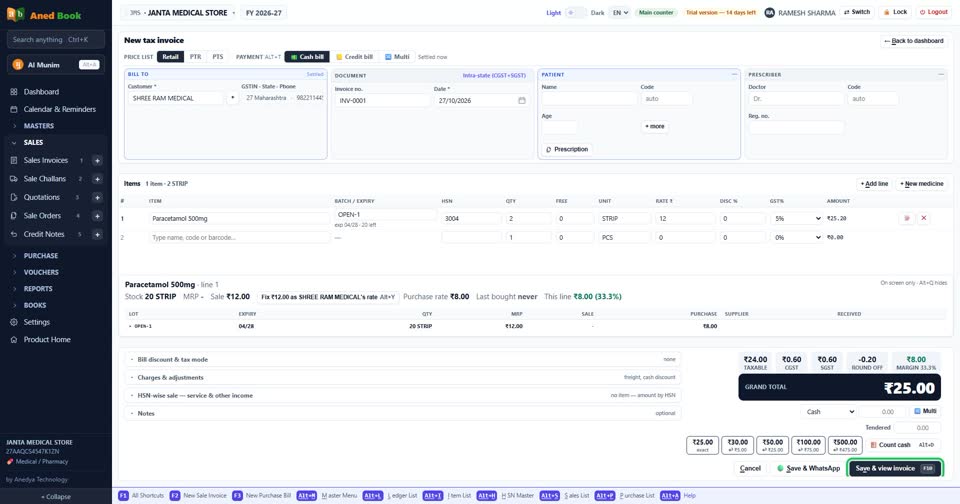
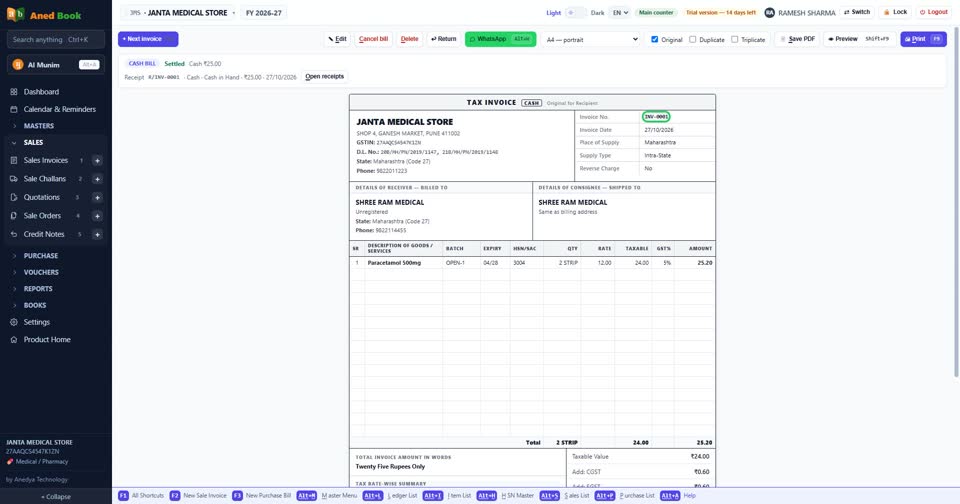
Your first bill, INV-0001 — ready to print. Every bill after it takes the next number by itself.