How to set up your printer — and print without the preview
Every edition — Lite, Basic, Silver and GoldPrinting is set per computer. Choose once whether Print shows a preview or goes straight to the paper, and which printer each kind of paper goes to.
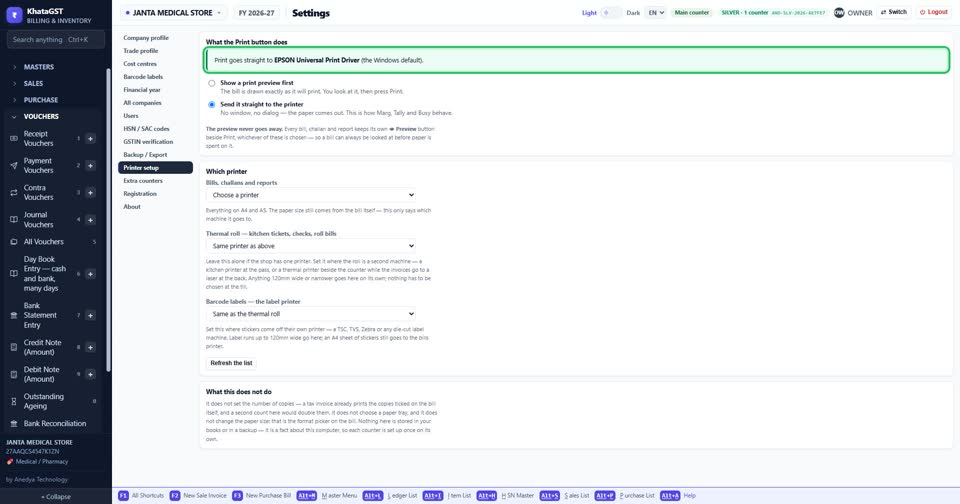
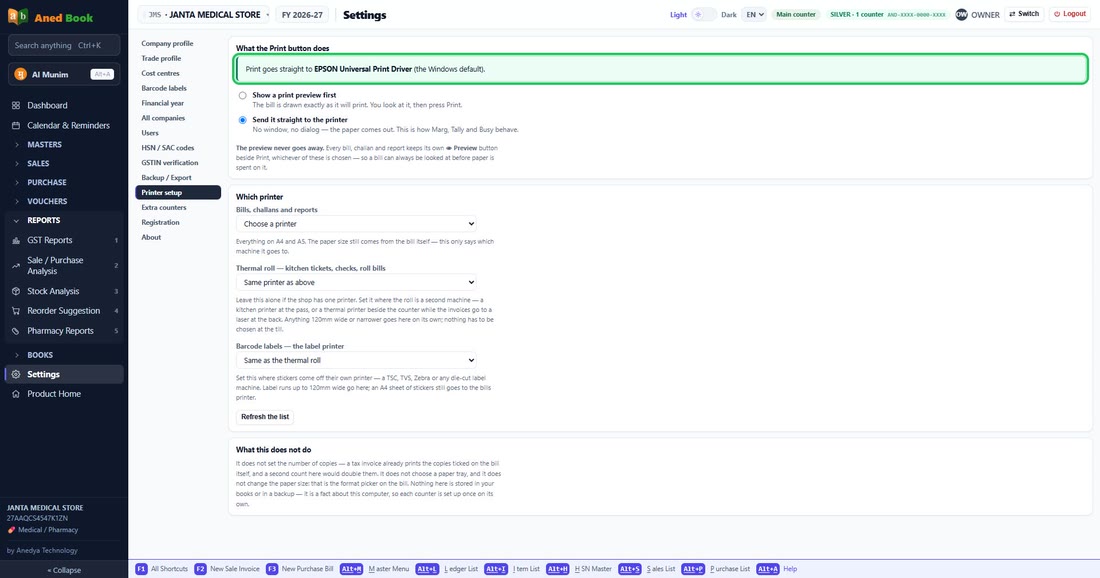
Open Settings and choose Printer setup. The coloured line at the top says, in one sentence, what the Print button does on this computer today.
 See the whole screen
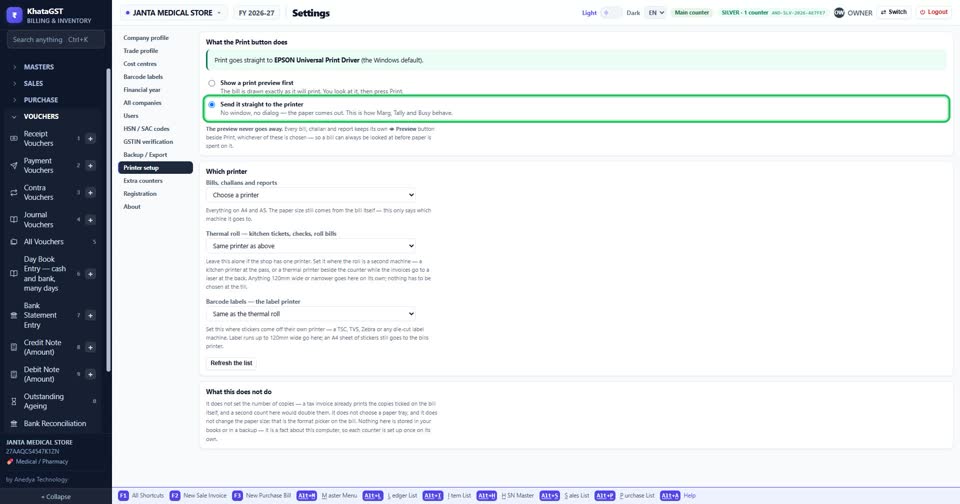
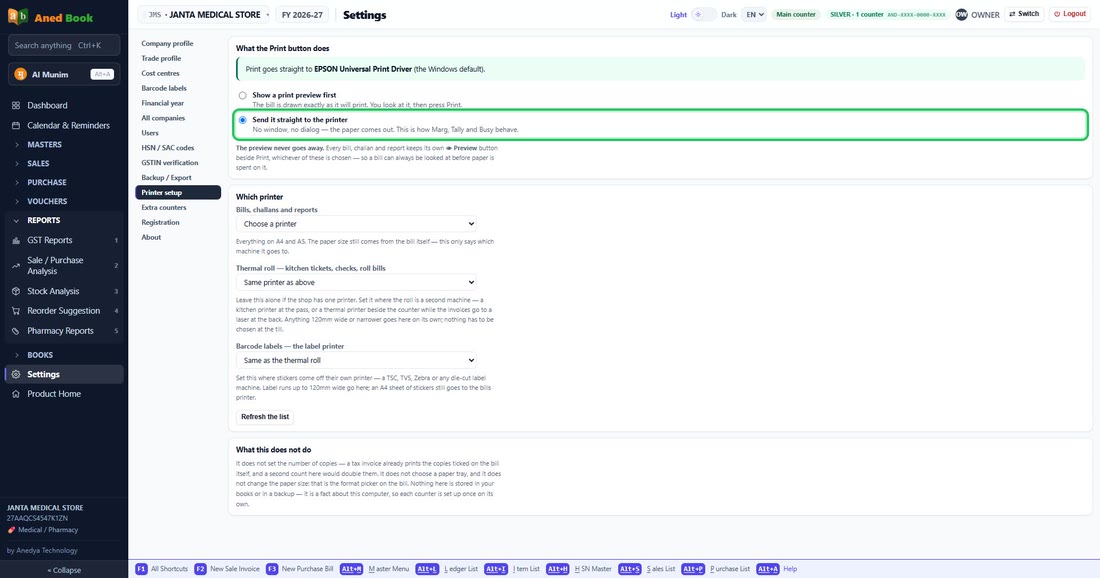
To print with no preview window, choose “Send it straight to the printer”. The preview never goes away — every bill, challan and report keeps its own Preview button.
 See the whole screen
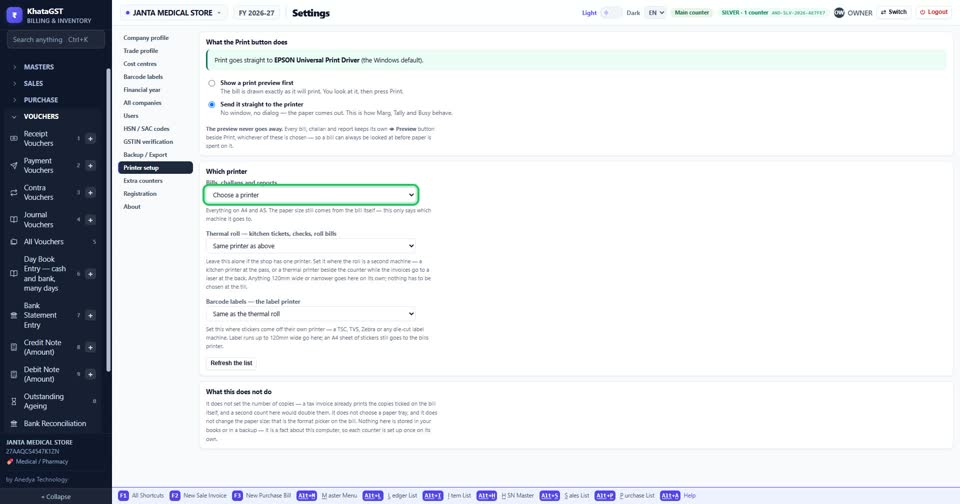
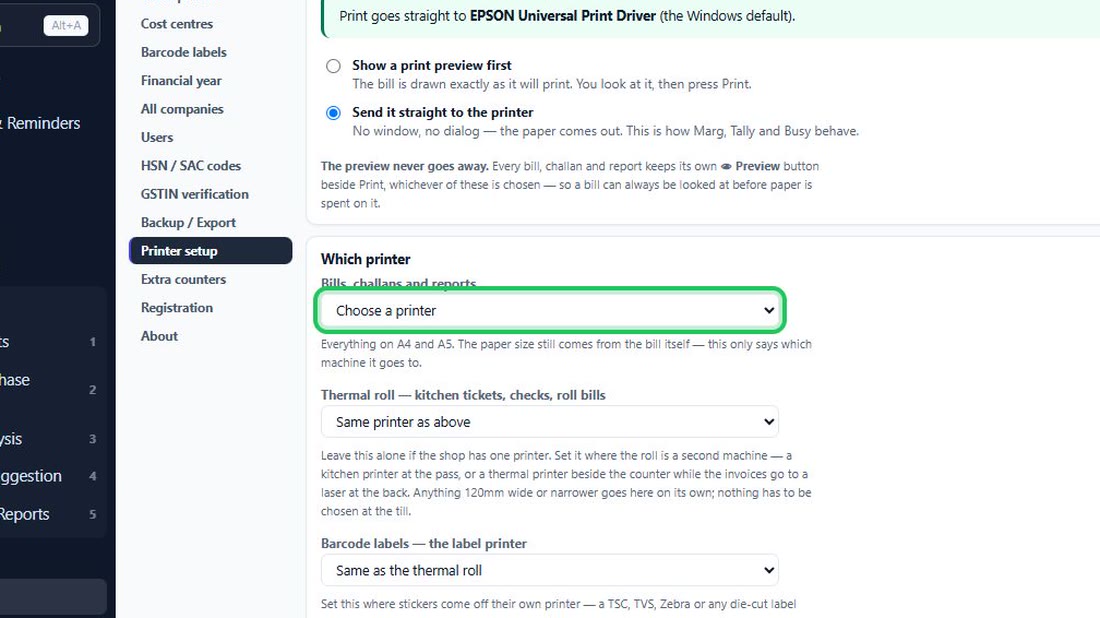
Pick the printer for bills, challans and reports — everything on A4 and A5. The paper size itself still comes from the company profile.
 See the whole screen
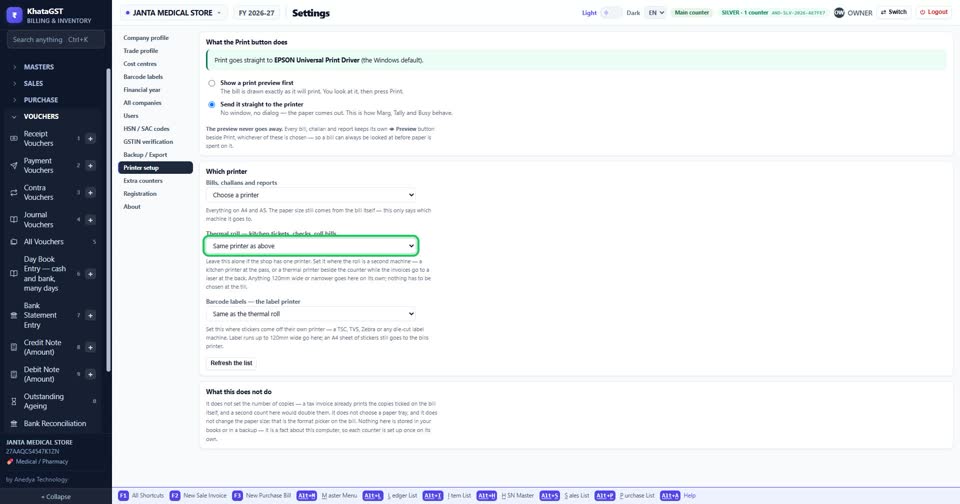
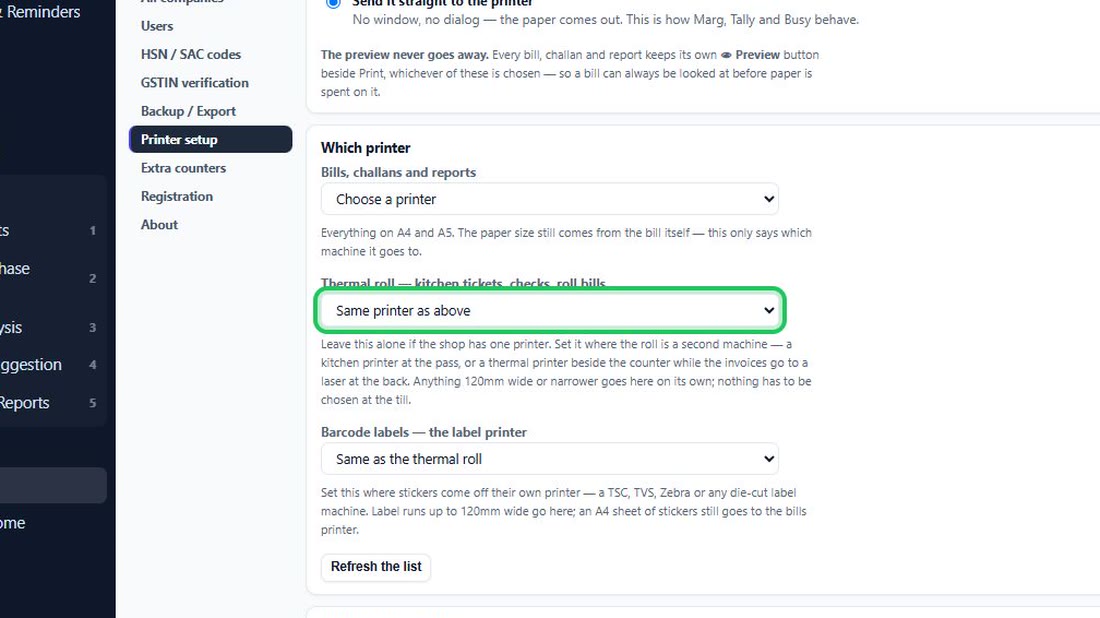
If the shop also has a thermal printer, choose it here. With one printer, leave “Same printer as above”.
 See the whole screen
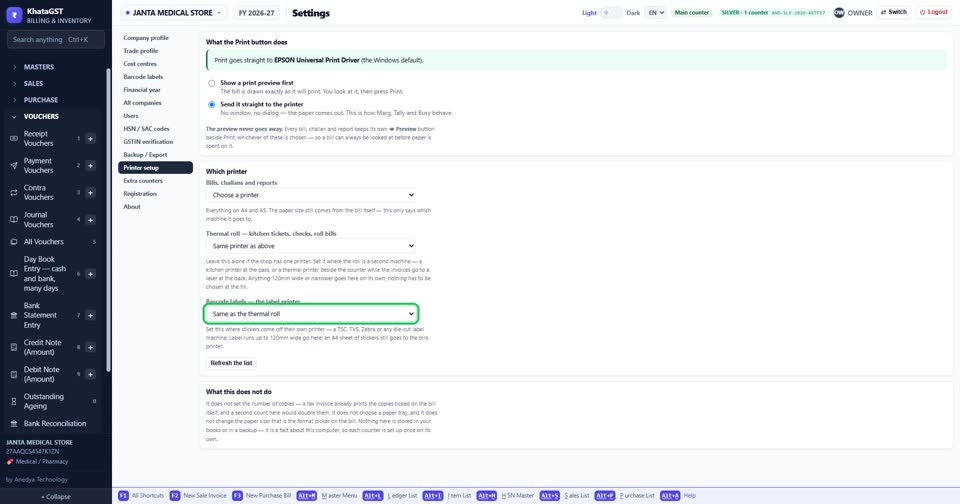
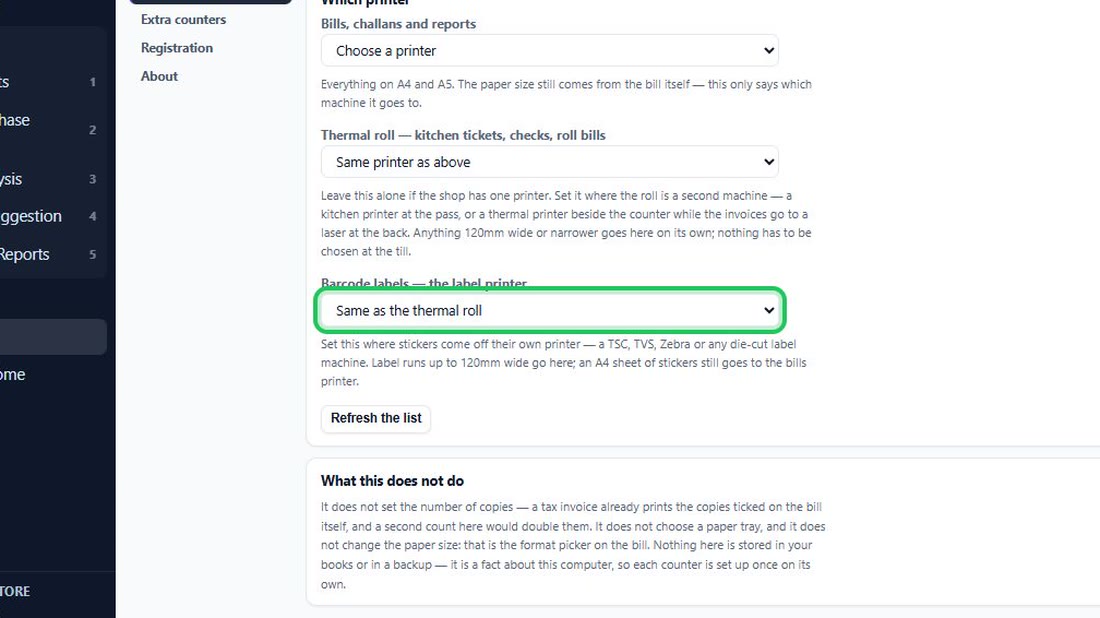
A separate sticker printer (TSC, TVS, Zebra or any die-cut label machine) goes in the third box. Leave it blank if you have none.
 See the whole screen
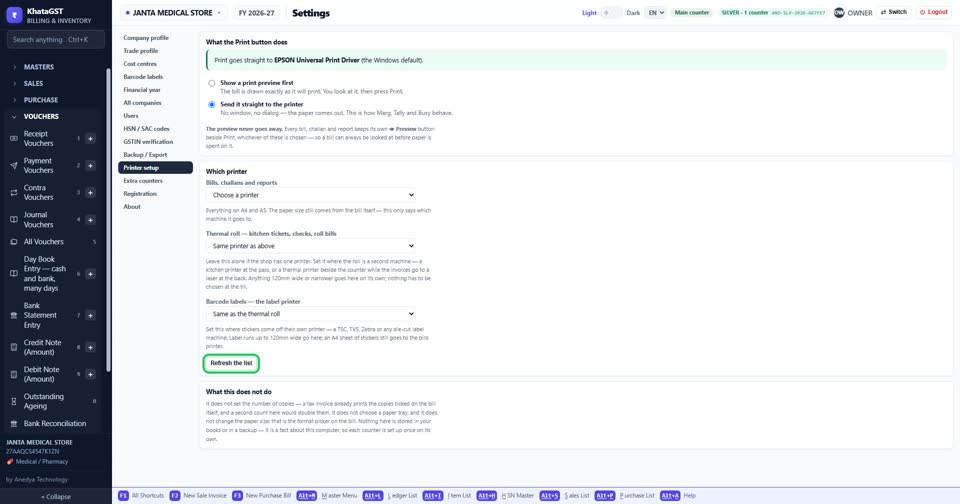
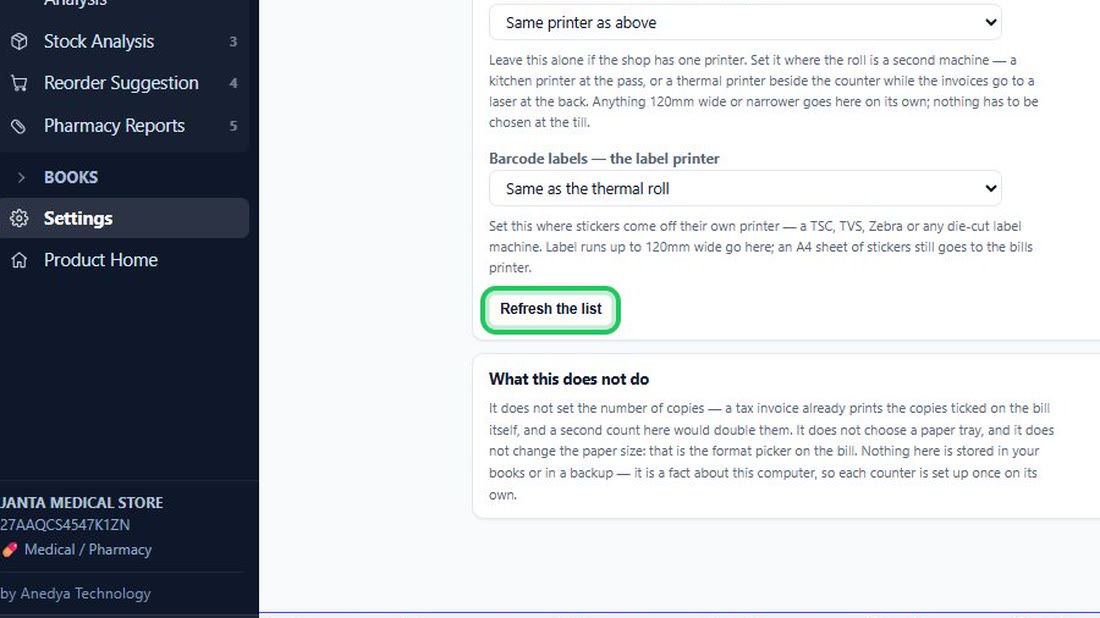
A printer that is not on the list: add it in Windows, then press Refresh the list.
 See the whole screen