Aned Book help › Step-by-step guides › Masters — customers, items, codes
How to find, add and re-rate HSN / SAC codes
Every edition — Lite, Basic, Silver and GoldHSN codes fill in the GST rate on item and invoice lines. Built-in codes are a starting reference; your own sit beside them.
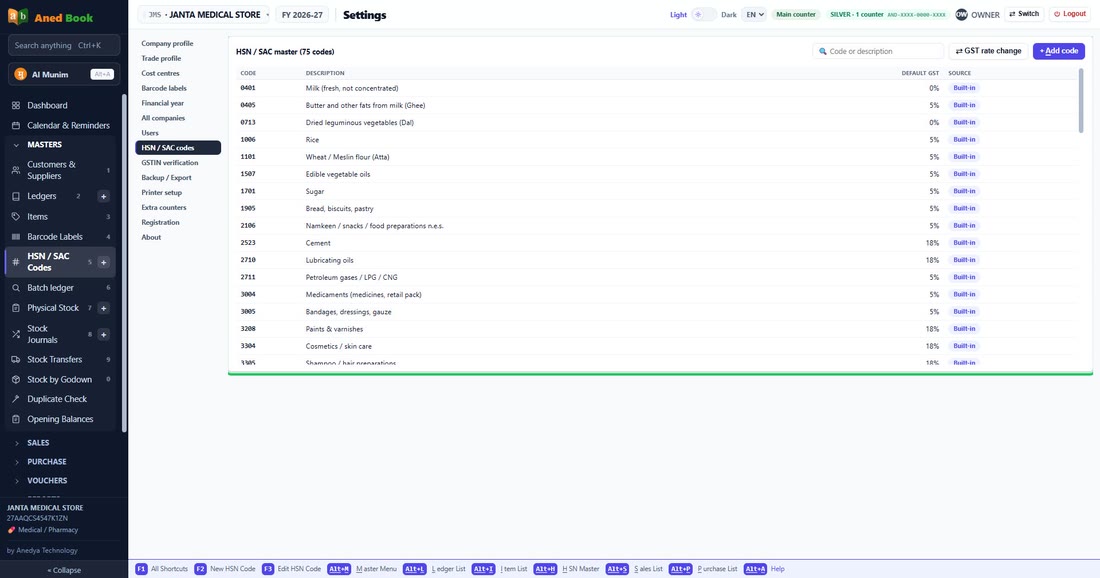
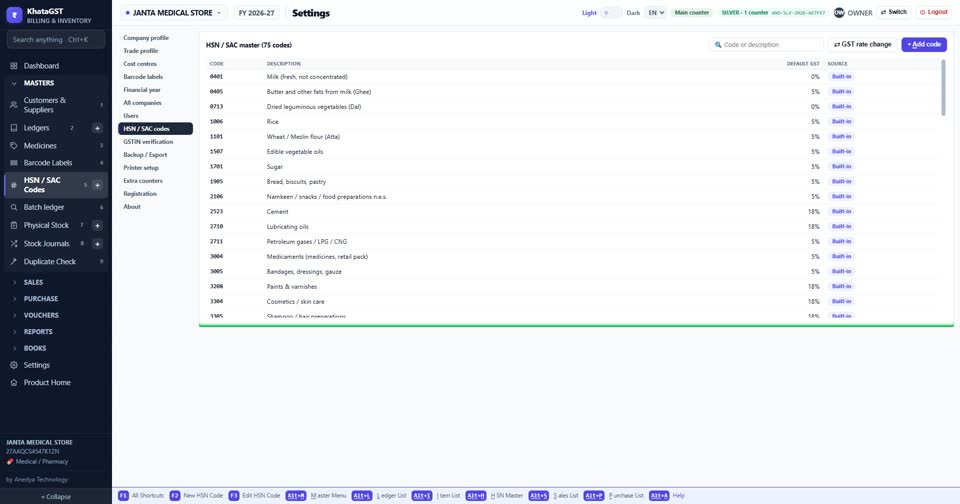
Open Settings, HSN / SAC codes. Built-in codes and your own are in one list, with the default GST rate of each.
 See the whole screen
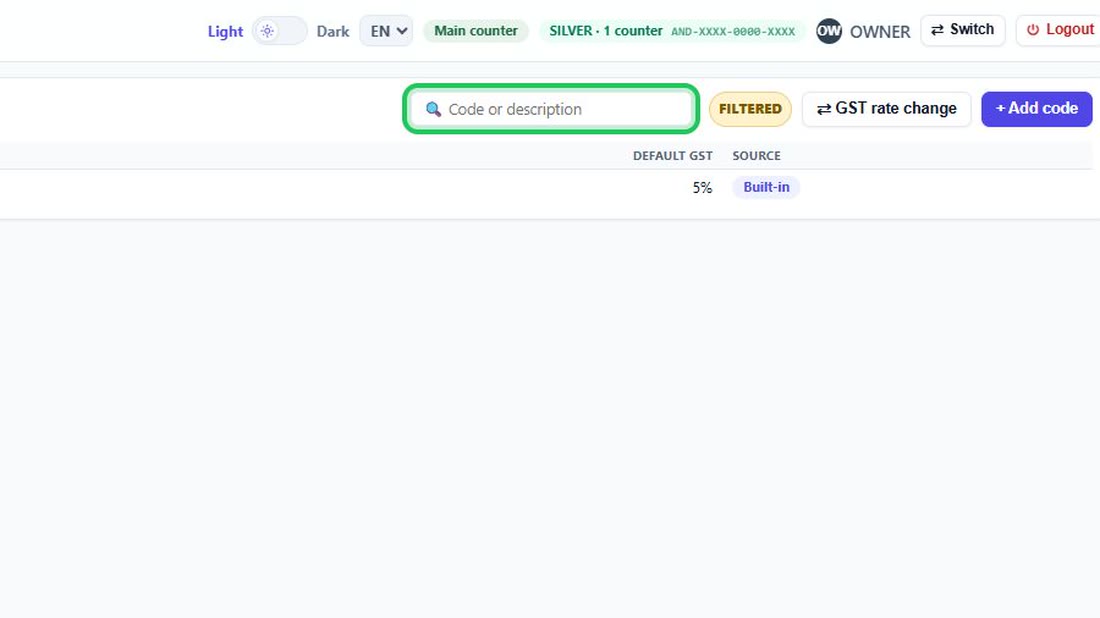
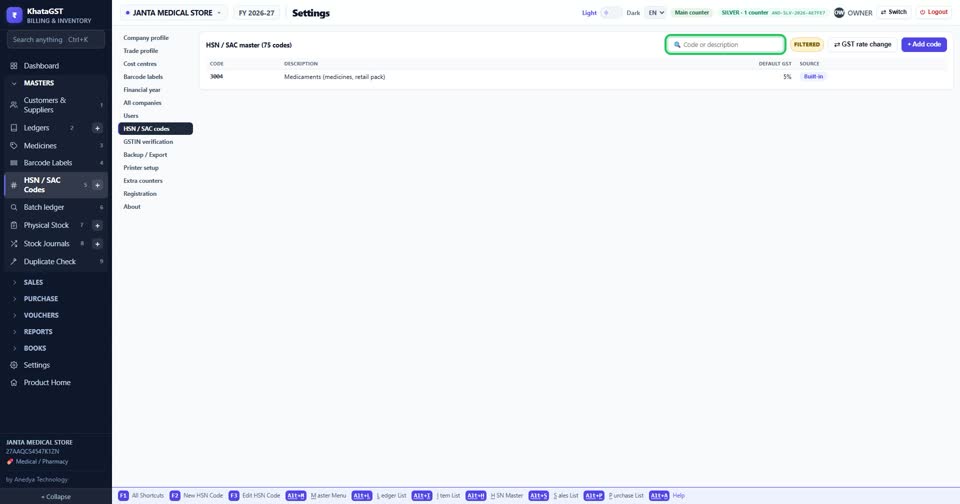
Search by code or by description.
 See the whole screen
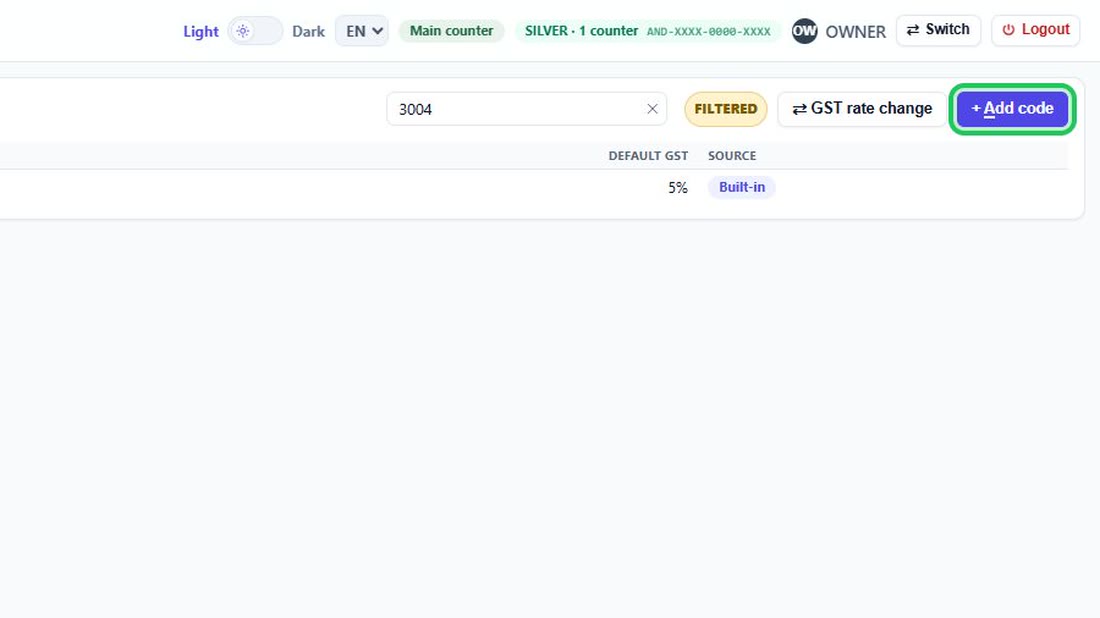
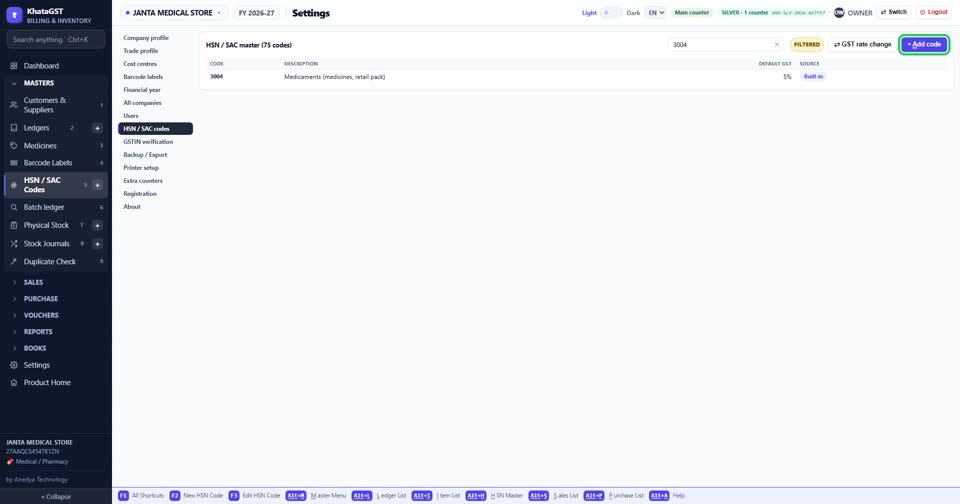
Add a code of your own with + Add code. Always confirm the exact rate on the GST portal — classification varies by sub-category.
 See the whole screen
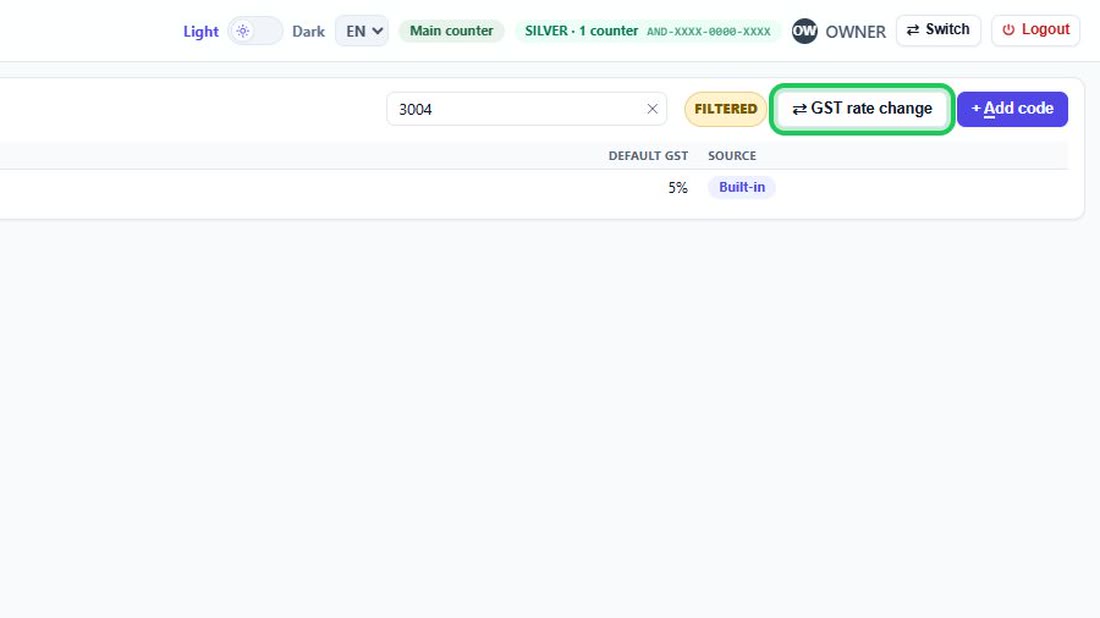
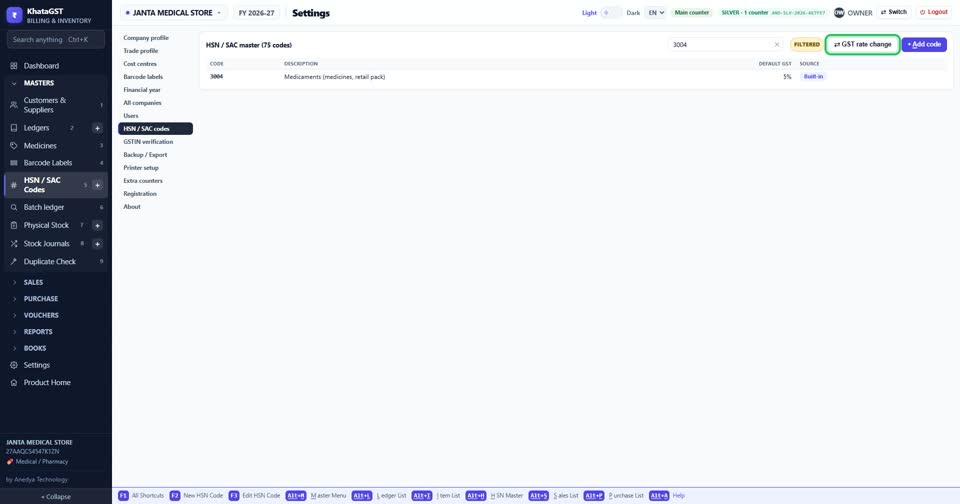
When the GST Council moves a product to a different slab, use GST rate change: find the items it names, tick them, and set the date the new rate starts.
 See the whole screen
Did this answer your question?
No — ask us on WhatsApp
Still stuck? Press Alt + A inside the software and ask in your own words — it
works with no internet. Or talk to us on WhatsApp, phone or e-mail.