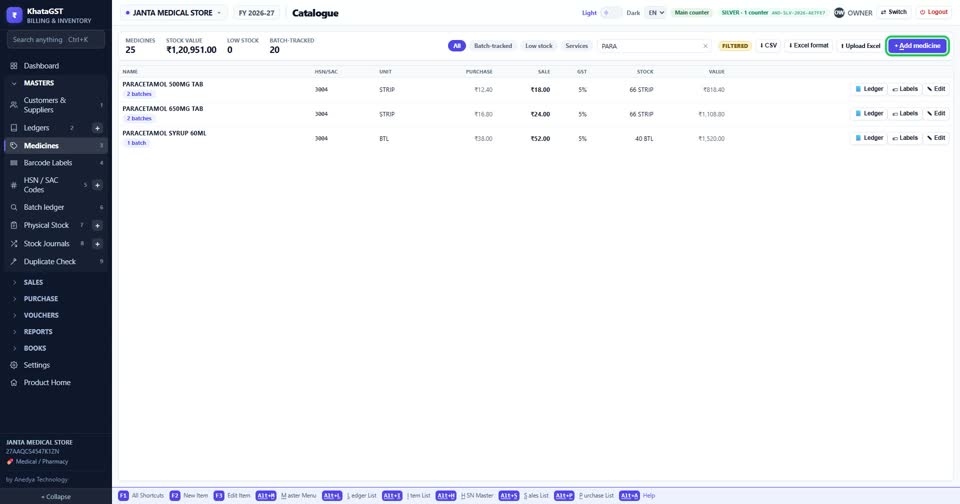
How to find an item, see its stock, and follow every movement of it
Basic, Silver and GoldThe item list is your shelf on one screen — rates, GST, stock and its value. Adding an item is its own video; this is finding and checking one.
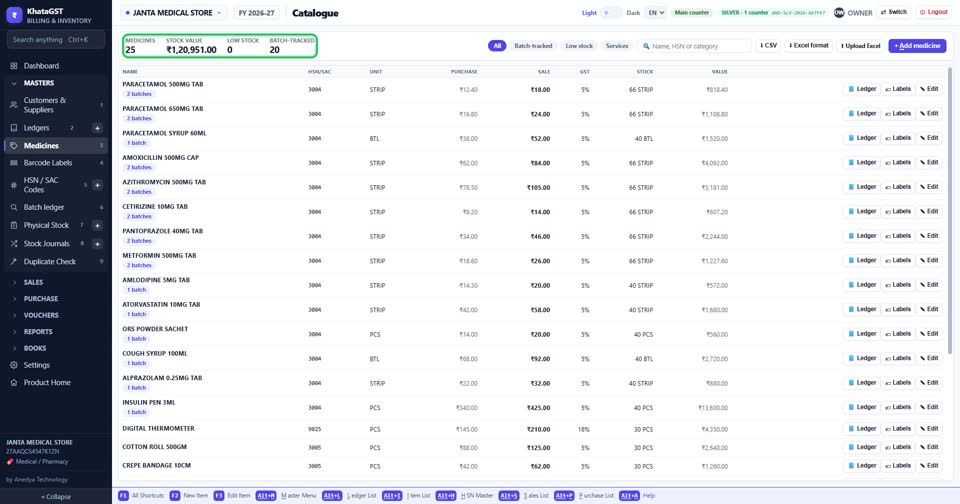
Open Masters and your item list. The top line counts your items, the stock value at cost, how many are low, and how many are kept batch by batch.
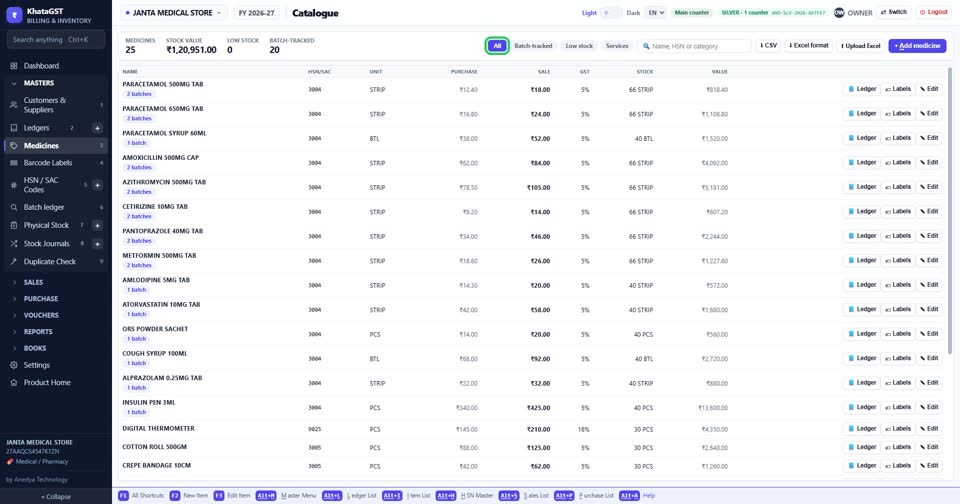
The tabs show everything, batch-tracked items, low stock, or services only.
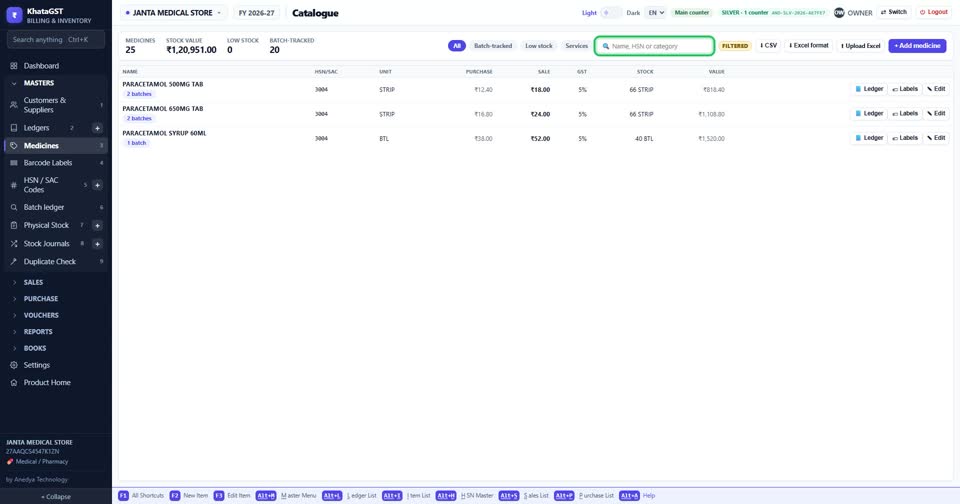
Search by name, HSN code or category.
Each row gives the HSN code, unit, purchase and sale rate, GST, stock and its value. Stock turns red at or below the item’s reorder level.
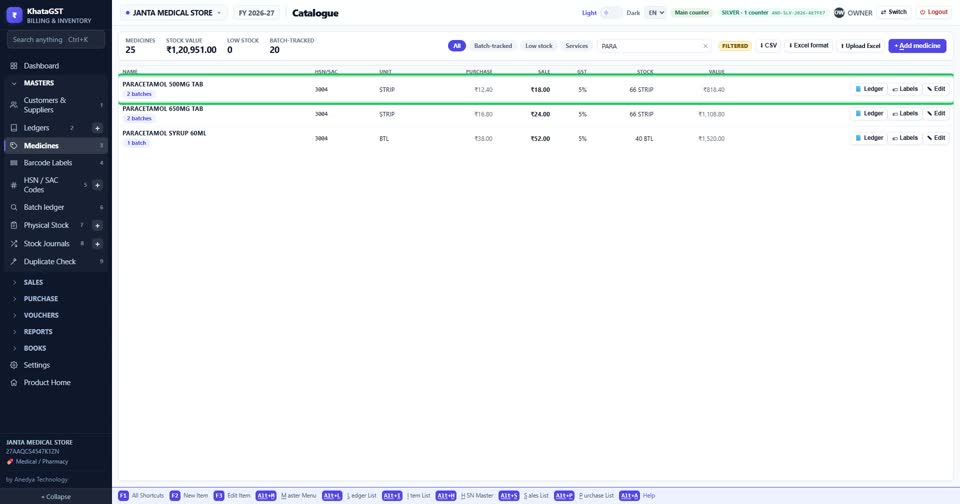
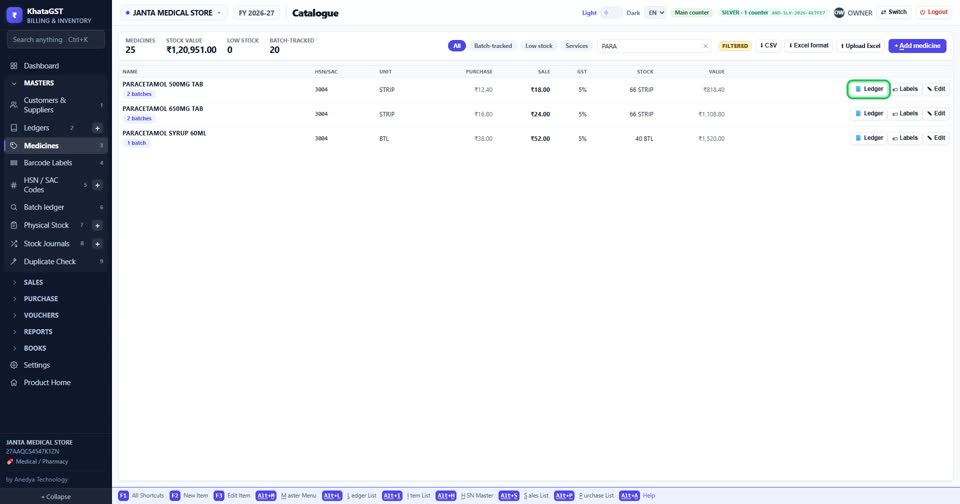
Ledger on the row shows every movement of that item — every bill, purchase, return and count. Alt + E does the same for the item you are on.
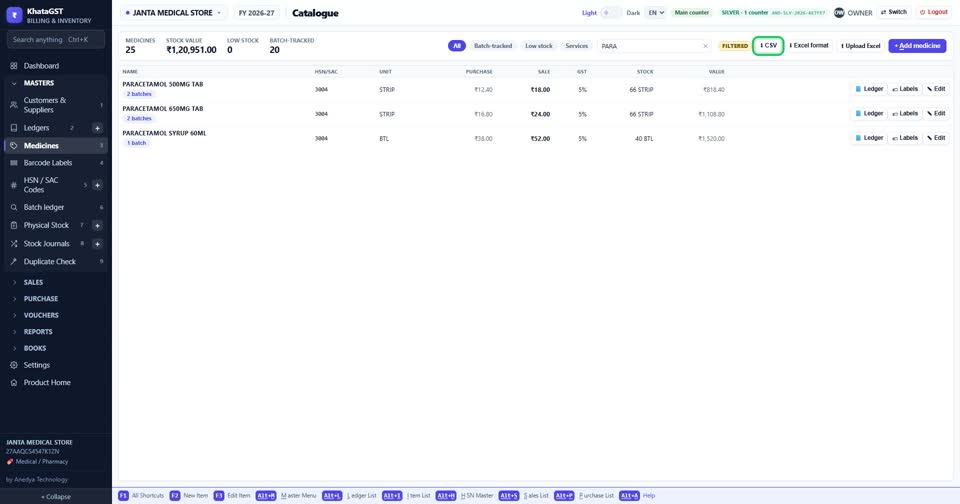
CSV saves the whole list for Excel; Import brings a sheet of items in.
Add a new item with the button on the right.