Aned Book help › Menu › Reports
Customers & Patients
In the software: Reports › Customers & Patients
Every editionEveryone who bought, read from the bills: customers, patients and doctors, saved details on a person, merge with undo, delete on request, Coming due, and the Excel workbook. Bills never change.
The screen
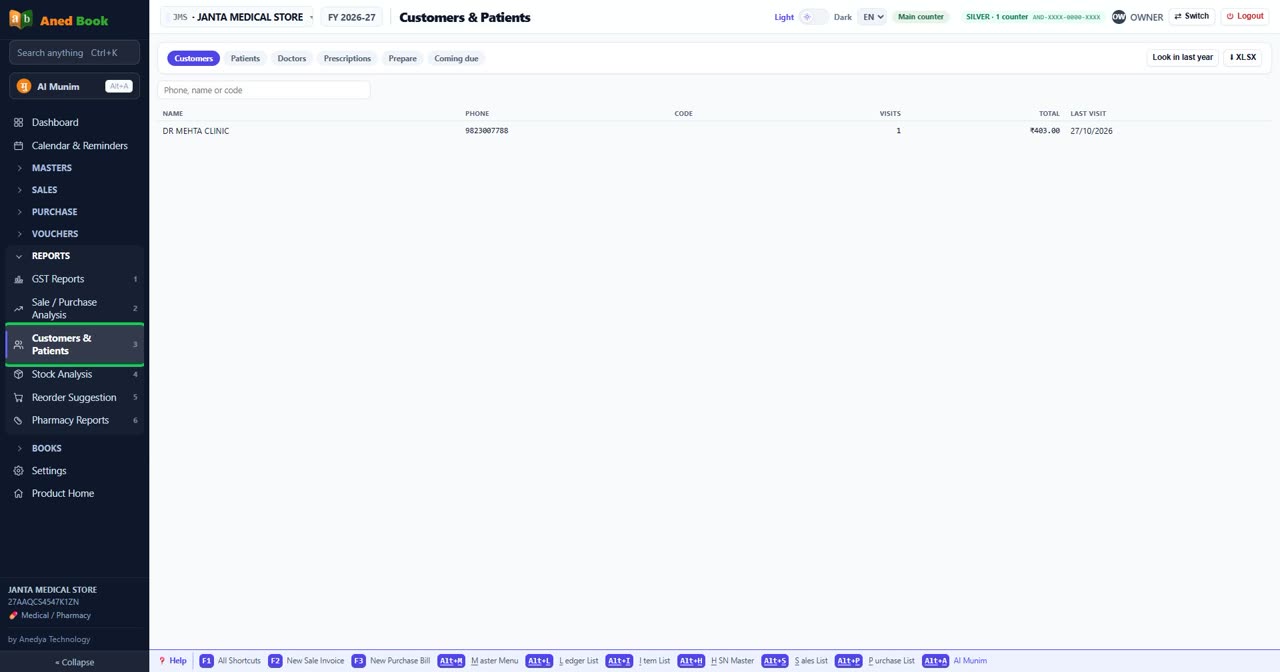
Every option on this screen (17)
Tap to open the full list ▾
In the same order and under the same headings as the software. A heading shut in the software is shut here too: click it, or type in the search box above.
Tabs on this screen
Tab
Customers
Everyone who bought this year: saved parties and walk-ins, found from the bills.
Tab
Patients
Everyone on a chemist bill, by name and phone. Two people of one name stay apart.
Tab
Doctors
Every doctor named on a bill. Save their phone, speciality, clinic and registration number here.
Tab
Prescriptions
Saved lists of medicines. Create, change, stop, copy and delete them here.
Tab
Prepare
Who is due soon on a saved course, and what the next 30 days need against your stock.
Tab
Coming due
Regular buyers who should come back soon, worked out from their own visits. A course uses its own date.
At the top of the screen
Look in last year
Adds last year’s bills to this list. They are only read.
⬇ XLSX
This file holds customer details. Keep it safe.
Box
Phone, name or code
Type at least two letters or digits to narrow the list.
Column
Name
The name.
Column
Phone
The phone number. WhatsApp messages go to this number.
Column
Code
The item’s short code.
Column
Visits
How many bills this person has.
Column
Total
The full amount including GST.
Column
Last visit
The date of their newest bill.
Windows that open from here
Window
Save as prescription
The name, patient, doctor, start date, course length, days between purchases, note and medicines of one list. You can attach the doctor’s paper. Schedule X and NDPS medicines cannot be saved.
Window
One person
Saved details no bill holds: second phone, birthday, OK to message, note. Same person as joins two spellings, and Undo separates them. Delete saved details removes the record. Bills never change.
On the tab: Prescriptions
At the top of the screen
New prescription
Makes a saved list from nothing, without a bill.
On the tab: Prepare
At the top of the screen
Box
Due within (days)
Shows who is due in this many days. Overdue people always show.
Still stuck? Press Alt + A inside the software and ask in your own words — it
works with no internet. Or talk to us on WhatsApp, phone or e-mail.