Aned Book help › Menu › Masters
Schemes
In the software: Masters › Schemes
Every editionShown when Schemes is switched on — on by itself for Medical / Pharmacy, Wholesale / Distribution. Any shop can switch it on in Settings › Trade profile.
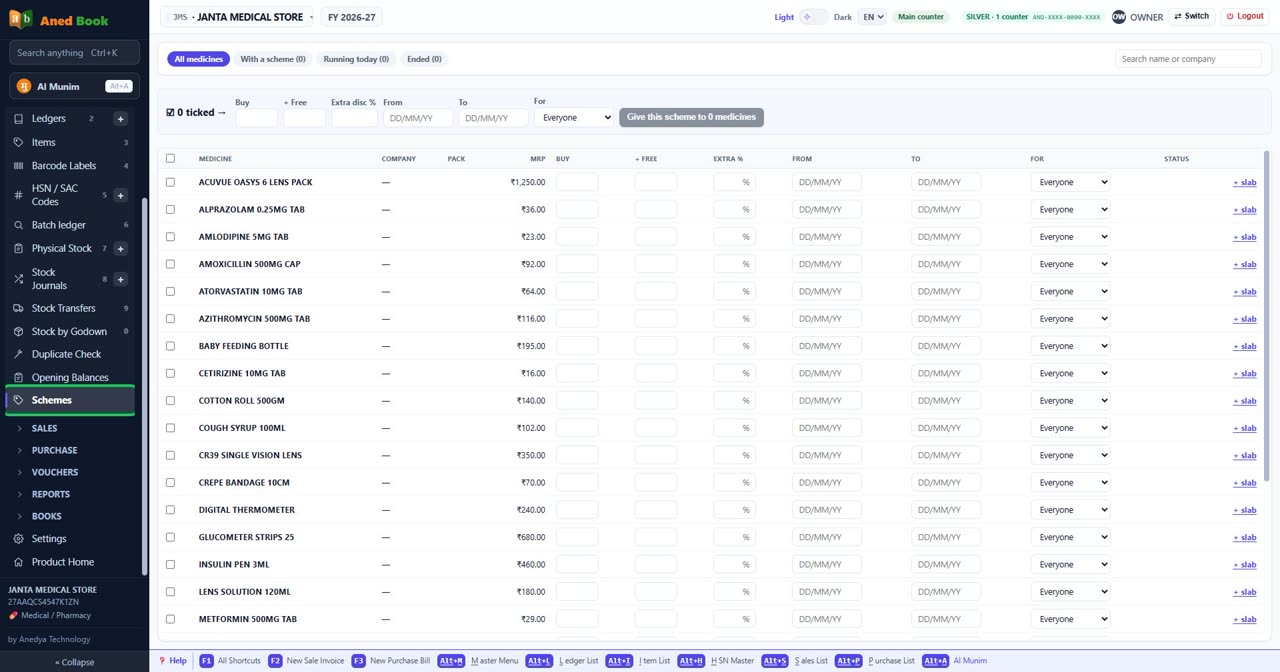
Schemes on every item in one place, like Opening Balances: buy, free, extra discount %, from and to dates and the price list, typed row by row (each row saves as it is left), more than one slab per item, and one scheme given to many ticked items at once - pick a company, tick all, type it once. A bill applies the biggest slab its quantity reaches by itself.
The screen
Every option on this screen (25)
Tap to open the full list ▾
In the same order and under the same headings as the software. A heading shut in the software is shut here too: click it, or type in the search box above.
Tabs on this screen
Tab
All medicines
Every item, with its schemes — or empty boxes where it has none, ready to type one.
Tab
With a scheme (0)
Only the items that have a scheme, running or not.
Tab
Running today (0)
Only the items whose scheme a bill made today would get.
Tab
Ended (0)
Items whose every scheme has ended. Change the To date to run one again.
At the top of the screen
Box
Search name or company
Type part of an item or company name to find its row.
Box
Buy
How many the customer buys to earn the scheme — 10 in “10 + 1”. In the item’s own unit (strips, boxes).
Box
+ Free
How many come free for every slab bought — 1 in “10 + 1”. 25 on a 10 + 1 gives 2 free.
Box
Extra disc %
An extra discount on the line once the quantity reaches the slab. Use it with or without free goods.
Box
From
The first date of the period to show.
Box
To
The last date of the period to show.
Box
For
Which price list the scheme is for — everyone, or only retail, wholesale or dealer bills. Choices: Everyone · Retail · PTR · PTS
Give this scheme to 0 medicines
Gives the scheme typed in this bar to every ticked item at once. An item that already has a slab of the same size gets it replaced; anything else is added beside. It asks first.
Tick
Tick every one shown
Ticks every item in the list - pick a company first to tick all of its items.
Column
Medicine
Type a few letters of the medicine and pick it from the list.
Column
Company
The item’s company — pick one in the box above to see and tick only its items.
Column
Pack
The item’s pack size, to tell two packs of one medicine apart.
Column
MRP
The item’s MRP.
Column
Buy
How many the customer buys to earn the scheme — 10 in “10 + 1”. In the item’s own unit (strips, boxes).
Column
+ Free
How many come free for every slab bought — 1 in “10 + 1”. 25 on a 10 + 1 gives 2 free.
Column
Extra %
An extra discount on the line once the quantity reaches the slab. Use it with or without free goods.
Column
From
The first date of the period to show.
Column
To
The last date of the period to show.
Column
For
Which price list the scheme is for — everyone, or only retail, wholesale or dealer bills.
Column
Status
Where this document stands — open, done, or cancelled.
Box
Extra %
An extra discount on the line once the quantity reaches the slab. Use it with or without free goods.
Still stuck? Press Alt + A inside the software and ask in your own words — it
works with no internet. Or talk to us on WhatsApp, phone or e-mail.