Aned BookHelp
अAI MunimAlt+A
▦Dashboard ▤Calendar & Reminders
MastersCustomers & SuppliersLedgersM.R.sItemsBarcode LabelsHSN / SAC CodesBatch ledgerPhysical StockStock JournalsStock TransfersStock by GodownShiftsDuplicate CheckOpening Balances
SalesSales InvoicesSale ChallansE-way BillsQuotationsSale OrdersCredit Notes
PurchasePurchase BillsPurchase ChallansPurchase OrdersDebit Notes
VouchersReceipt VouchersPayment VouchersContra VouchersJournal VouchersSale VouchersPurchase VouchersGST OutwardGST InwardAll VouchersDay Book Entry — cash and bank, many daysBank Statement EntryCredit Note (Amount)Debit Note (Amount)Outstanding AgeingInterest on OverdueCheques (PDC)Bank Reconciliation
RestaurantTables
TransportConsignment NotesFreight Register
ReportsGST ReportsSale / Purchase AnalysisStock AnalysisReorder SuggestionCommissionPharmacy Reports
BooksAccountsProfitabilityImports & Exports
⚙Settings ⌂Product Home
MessagesFeaturesPhone app Step-by-stepVideosWhat's newContact us
DownloadPriceYouTubeContact us
Aned Book help › Menu › Settings › Barcode labels

How do I turn “Show the ready-made designs on the label screen” on or off?

How to

Settings › Barcode labels: tick “Show the ready-made designs on the label screen” to turn it on, untick it to turn it off. The change is kept as soon as you make it. Off, the label screen opens straight onto your own designs and the boxes below them. Nothing is deleted - turn this back on whenever you want one.

  1. Settings › Barcode labels: “Show the ready-made designs on the label screen”. Tick for on, untick for off.
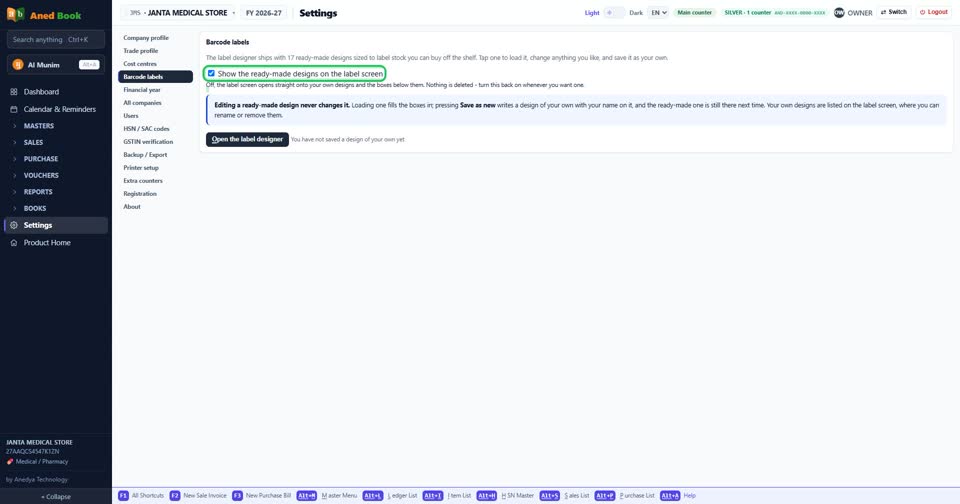
    Settings › Barcode labels: “Show the ready-made designs on the label screen”. Tick for on,
Still stuck? Press Alt + A inside the software and ask in your own words — it works with no internet. Or talk to us on WhatsApp, phone or e-mail.
Aned Book — GST billing and inventory software for Indian shops. ANEDYA TECHNOLOGY LLP · anedya.net · Contact us