How do I show or remove “Bank details & payment QR” on the bill?
How toShort answerSettings › Company profile › Bill format designer › Open the designer: tick “Bank details & payment QR” to print it on the bill, untick it to leave it off, then press Save format. Tick to print your bank details and payment QR on the bill; untick to leave it off.
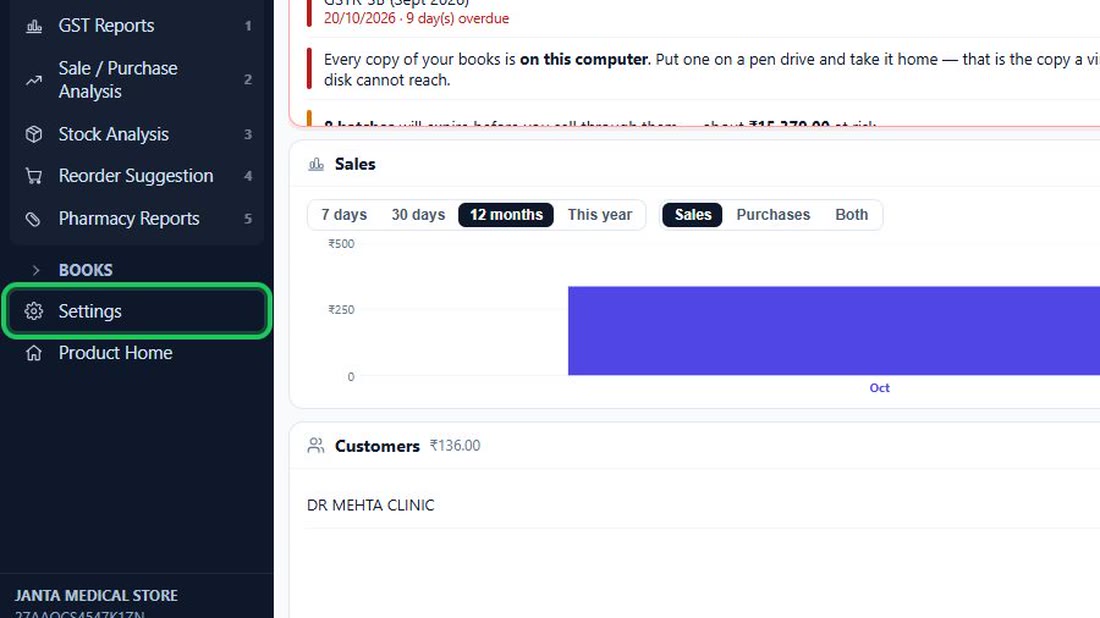
- In the menu on the left, press Settings (near…
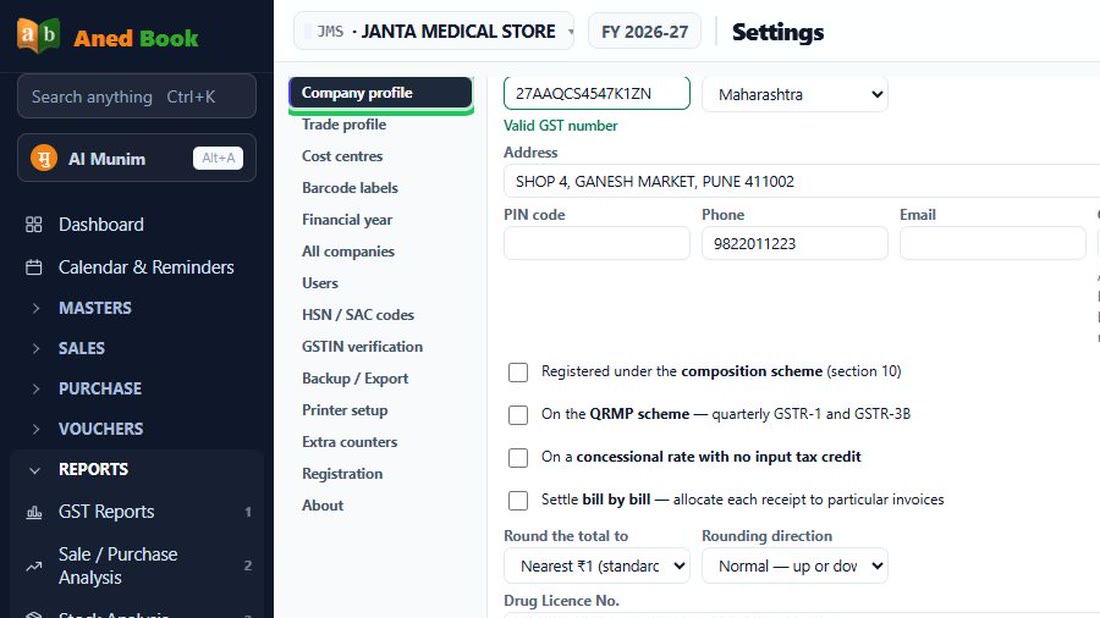
- Choose “Company profile” in the list of…
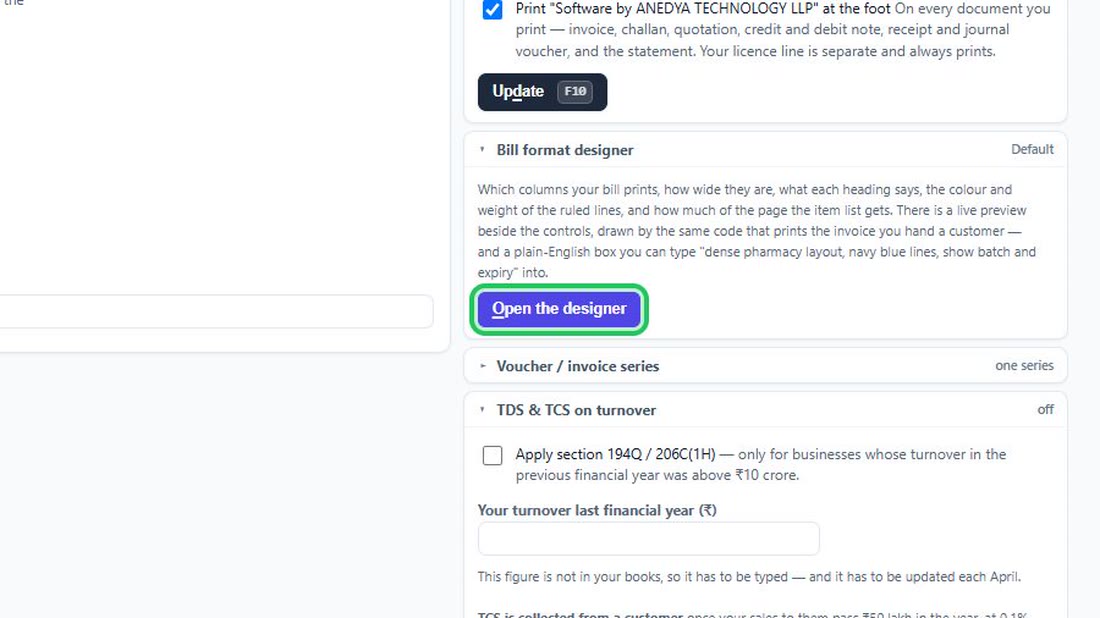
- On the right, open “Bill format designer” and…
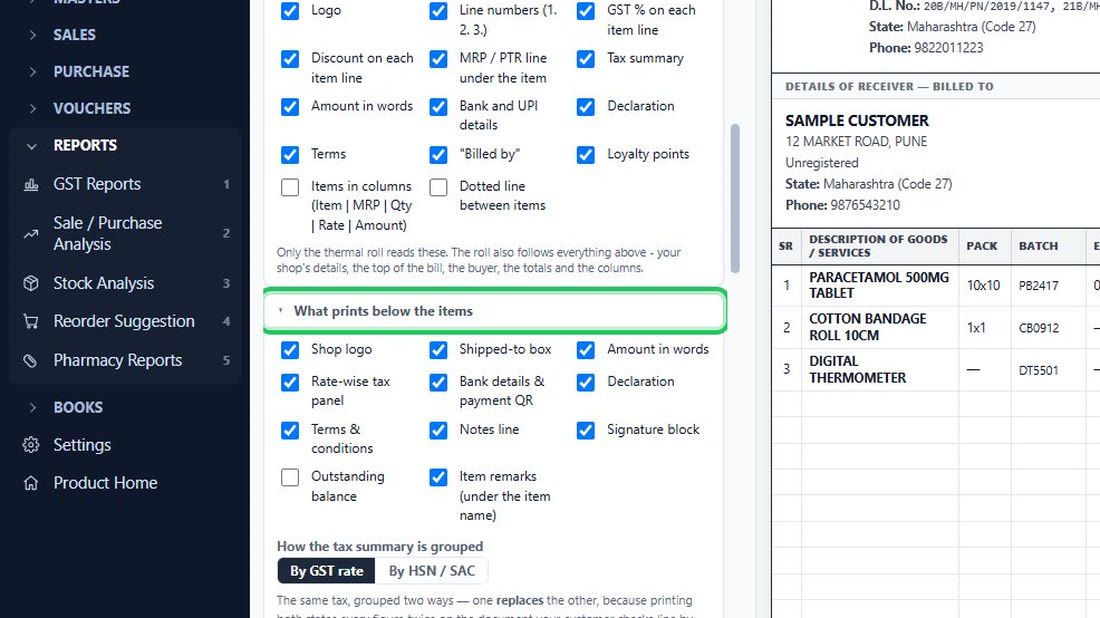
- In the designer, find the part “What prints…
- Untick “Bank details & payment QR” to take it…
- Press “Save format”. The next bill you print…
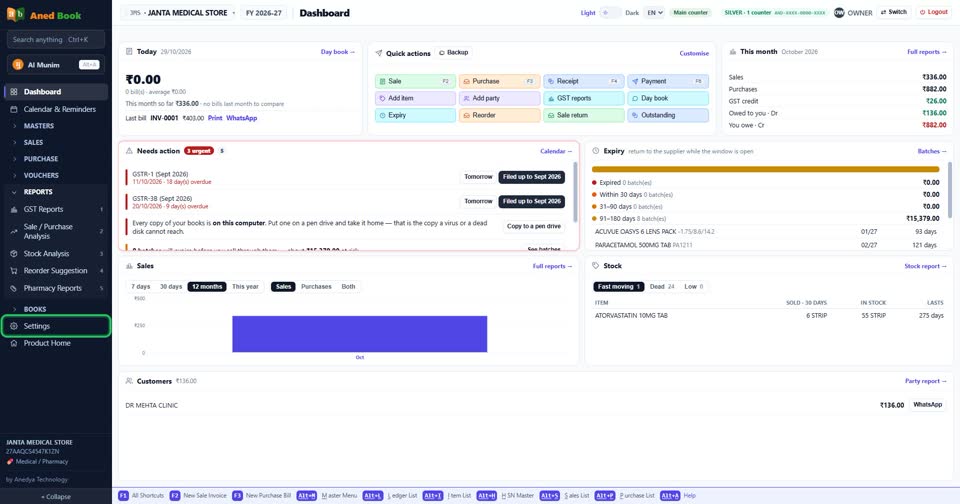
In the menu on the left, press Settings (near the bottom).
 See the whole screen
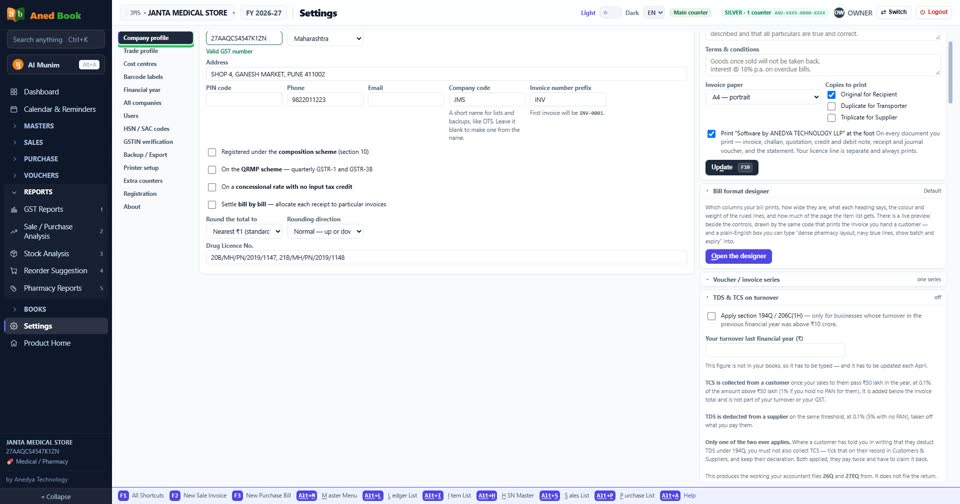
Choose “Company profile” in the list of Settings.
 See the whole screen
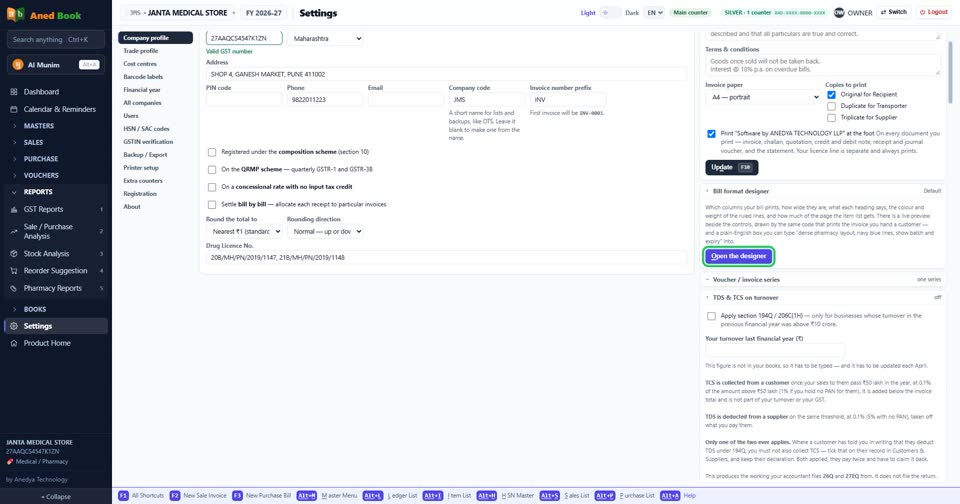
On the right, open “Bill format designer” and press “Open the designer”.
 See the whole screen
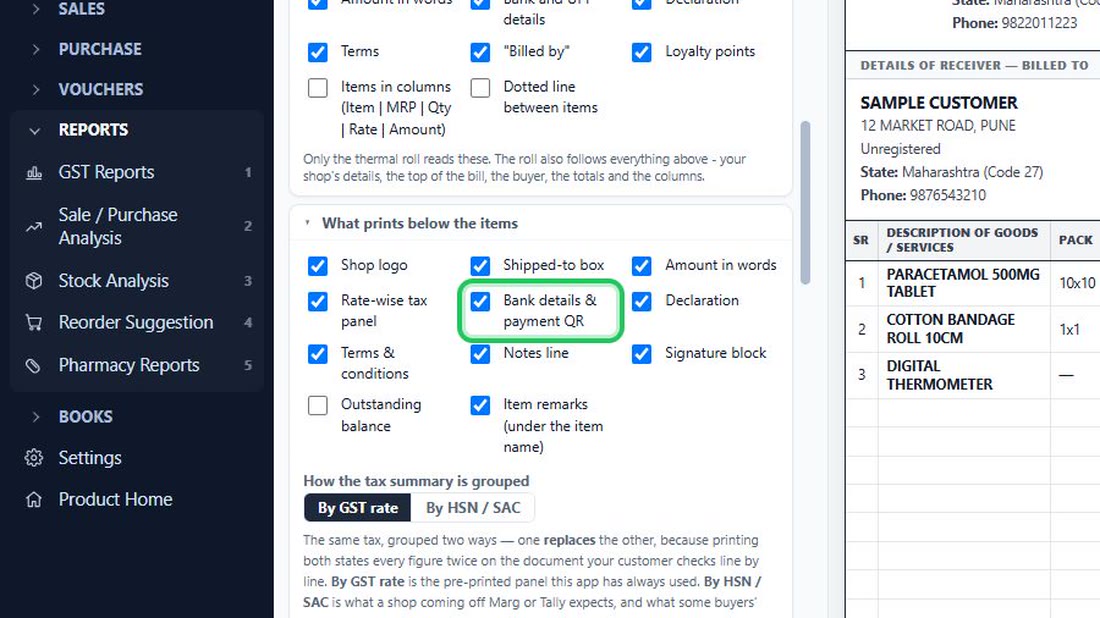
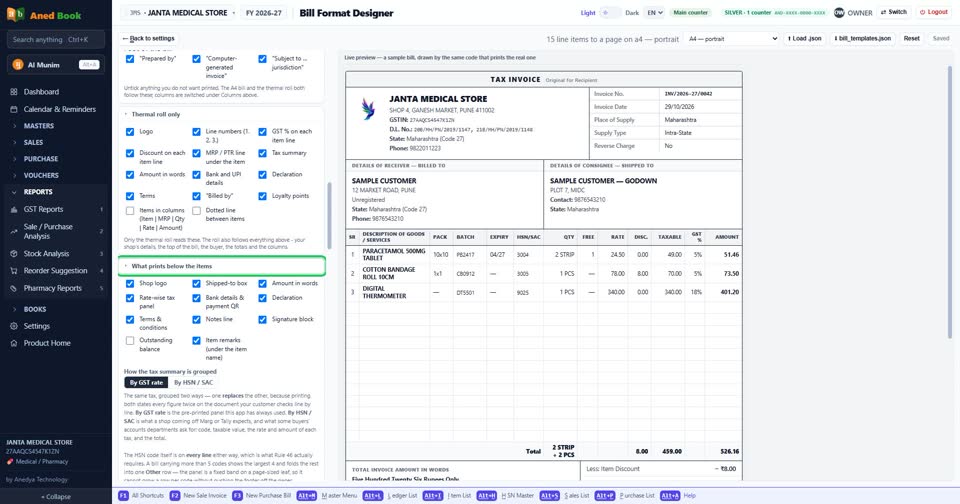
In the designer, find the part “What prints below the items”.
 See the whole screen
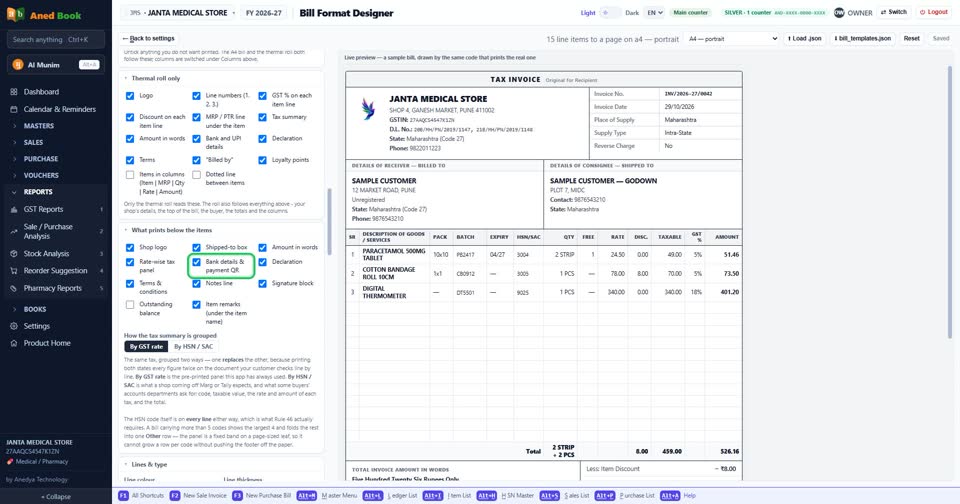
Untick “Bank details & payment QR” to take it off the bill (tick it to print it).
 See the whole screen
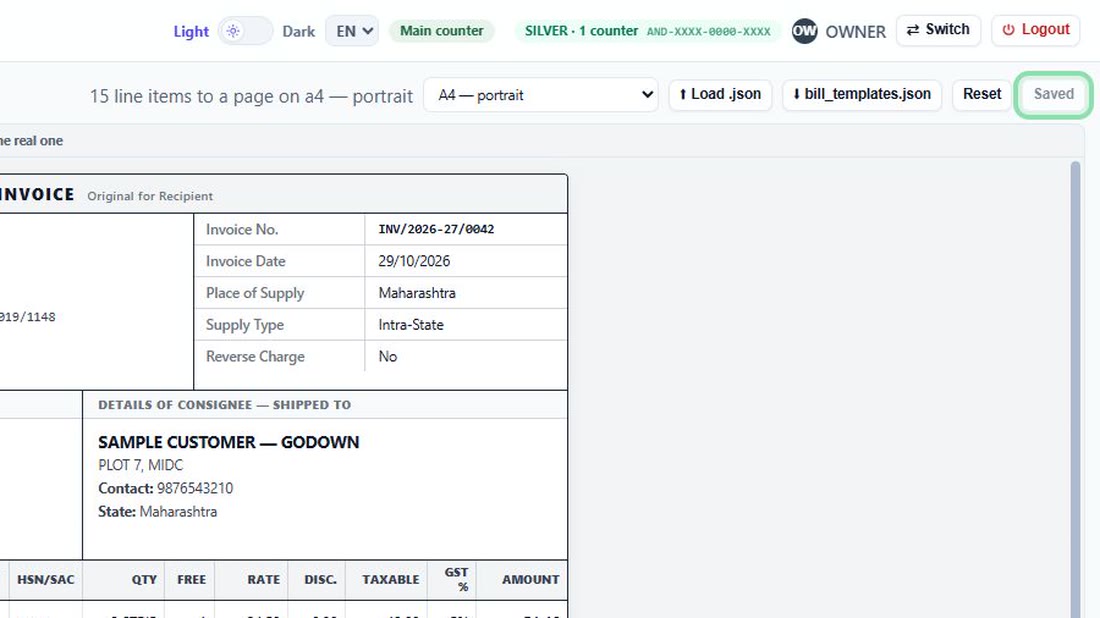
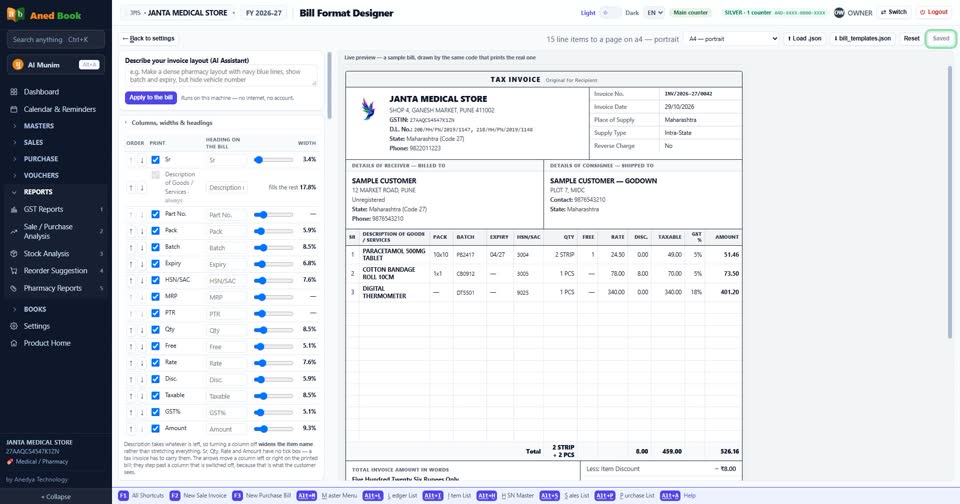
Press “Save format”. The next bill you print shows the change.
 See the whole screen
Every box used here
Opens the bill designer.
Tick
Tick to print your bank details and payment QR on the bill; untick to leave it off.
Every option on Company profile →
Did this answer your question?
No — ask us on WhatsApp